Why WorkMimic Is Designed to Stay Invisible to Time-Tracking Tools
Understand background operation, recorded human activity, and how WorkMimic interacts with active-window tracking, activity metrics and screen captures.
 By the WorkMimic team
Summary: What makes WorkMimic different?
WorkMimic combines three main design principles:
-
Quiet background operation. Playback can run without keeping the application interface open or bringing it into the foreground.
-
Hands-free automation. Keyboard shortcuts, system tray controls, schedules, idle triggers, and automatic stopping reduce the need to interact with the application during everyday use.
-
Recorded human activity. Instead of relying exclusively on repetitive, algorithm-generated movement, WorkMimic replays varied keyboard and mouse activity patterns captured from real computer use, with profiles tailored to different professions.
Together, these features make WorkMimic fundamentally different from traditional mouse jigglers and simple automated activity tools.
WorkMimic is built to give you more freedom to think, read, and work at your own pace, without making constant keyboard and mouse activity the center of your workday.
How does WorkMimic interact with Time Doctor, Hubstaff, Insightful, ActivTrak, and other employee monitoring software?
WorkMimic is designed to run quietly in the background, without requiring its main window to be open, while replaying authentic keyboard and mouse activity recorded from real people.
To understand why this approach is different from traditional mouse jigglers and activity simulators, it helps to understand what time-tracking software actually monitors, what information it typically doesn’t collect, and how WorkMimic operates.
1. What do time-tracking tools monitor?
Employee monitoring platforms such as Time Doctor, Hubstaff, Insightful, and ActivTrak typically collect three major categories of information.
Active applications, windows, and browser tabs
Time-tracking tools can record which application or browser window is currently active on your computer.
Depending on the platform and its settings, the collected information may include:
- Application name: For example, Chrome, Microsoft Excel, or Visual Studio Code.
- Window title: The name of the document, website, or project currently open.
- Website URL: The address of the website you are visiting.
- Activity duration: How long you spend using a particular application or website.
When you switch between applications or browser tabs, the tracker may register a new activity record.
Importantly, this type of monitoring generally focuses on the active (foreground) window, rather than providing a complete list of applications running in the background.
Keyboard and mouse activity
Time trackers measure keyboard and mouse interactions to determine how actively someone is using their computer.
Depending on the tracker, the recorded metrics may include:
- Keyboard activity or the number of keystrokes.
- Mouse movements.
- Left and right mouse clicks.
- Mouse scrolling.
- Periods without keyboard or mouse activity.
Some platforms analyze these events at a very granular level, while others aggregate them into activity percentages or intervals.
These metrics help determine whether a user is considered active or idle. They may also be analyzed for unusually repetitive or inconsistent activity patterns.
Screenshots and screen recordings
Many monitoring tools support visual capture of the computer screen.
Depending on the platform, subscription, and employer configuration, this may include:
- Periodic screenshots, sometimes at randomized intervals.
- Screenshots triggered by particular events.
- Continuous or near-continuous screen recording.
- Captures of multiple monitors, not necessarily limited to the active application.
Screen captures provide information that keyboard and mouse activity metrics alone cannot reveal, including what is actually displayed on the user’s desktop.
2. What don’t time-tracking tools normally record?
Understanding the limitations of typical activity monitoring is equally important.
The actual content of keystrokes
Time Doctor, Hubstaff, Insightful, and ActivTrak and other time-tracking tools document that their activity monitoring does not use keystroke logging.
For example, a tracker may record that several keyboard interactions occurred, without recording the specific letters, numbers, or commands that were entered.
The complete details of mouse interactions
Standard activity reports generally summarize mouse activity rather than providing a complete reconstruction of every cursor movement.
For example, they may report how frequently the mouse moved or was clicked, without displaying the exact path of the cursor or the coordinates of every click.
The origin of every individual input
Standard productivity reports usually focus on observed activity rather than displaying a detailed technical source for each keyboard or mouse event.
The key distinction: A time-tracking activity report is not the same as a complete technical audit of everything happening on a computer.
3. How WorkMimic is invisible for the time trackers
WorkMimic uses several features to operate without unnecessary interaction with the desktop and to reproduce the variable activity patterns associated with real computer work.
A. Background operation without an active application window
WorkMimic does not need to remain open as a foreground application while playback is running.
Instead, its main window can stay closed or minimized to the system tray (the notification area of the taskbar).
This has several practical implications:
For active-window tracking:
- WorkMimic does not need to become the active window simply to continue playback.
- The foreground application can remain your browser, code editor, spreadsheet, or another program.
- Starting or stopping playback does not require navigating to the WorkMimic main window.
If you deliberately open the WorkMimic interface, however, it may become the active window and be recorded as such. However, the app name is disguised, so it will not appear related to the time tracking evasion.
For screenshots and screen recordings:
- The WorkMimic main interface does not appear on your desktop during playback.
- When playback is active, WorkMimic app logo is not visible on the screen.
- Your existing desktop and applications remain visible.
The system tray icon may still be visible if the notification area is displayed or expanded.
B. Multiple ways to control playback without opening the application
WorkMimic provides several ways to start and stop activity playback without bringing its main interface into focus.
Manual controls:
- Keyboard shortcuts: Start or stop playback using configured hotkeys.
- System tray controls: Access playback commands directly from the Windows notification area.
Automatic controls:
- Scheduled playback: Configure WorkMimic to begin according to your preferred weekly schedule.
- Idle-triggered playback: Automatically start playback after a specified period without real keyboard or mouse input.
- Automatic stopping: When you resume using your computer, WorkMimic can stop playback based on the configurable human-input sensitivity threshold.
This allows WorkMimic to operate with minimal interaction after the initial setup, while giving you control over when playback is active.
C. Authentic human activity instead of simple generated patterns
This is one of the most important differences between WorkMimic and conventional activity simulators.
Many basic mouse jigglers or auto-clickers rely on artificially generated patterns, such as moving the cursor at fixed intervals or repeatedly producing the same type of input.
Such patterns may stand out during statistical analysis, particularly when they contain excessively regular timing, unusual activity levels, or an unrealistic combination of keyboard and mouse events.
WorkMimic takes a different approach: it replays activity sequences originally recorded from real people working at their computers.
These recordings include variations naturally present in human computer use:
- Bursts of rapid keyboard activity followed by pauses.
- Irregular mouse movements and clicks.
- Short and long scrolling sequences.
- Changing levels of activity throughout a session.
- Periods of limited or no interaction.
- Different combinations of keyboard, mouse, and navigation activity.
Rather than relying solely on a generic algorithm to generate an artificial rhythm, WorkMimic uses recorded human activity as the basis for playback.
D. Activity patterns matched to your profession
Different jobs involve different types of computer activity.
A software developer may spend considerable time reading code, followed by intense typing bursts. A graphic designer may interact primarily through the mouse, while a customer support specialist may switch frequently between browser tabs and applications.
WorkMimic provides 102 professional activity profiles across 14 industries, allowing users to select activity patterns associated with their type of work.
You can also record your own activity and build a personal playback library.
Recorded activity is stored in one-minute segments that can be selected and replayed in different orders, providing variation between playback sessions.
This approach avoids relying on one identical sequence repeated continuously.
E. Support for a wide range of computer inputs
WorkMimic can replay more than simple cursor movement.
Depending on your settings, playback can include keyboard interactions, mouse movement, left and right clicks, scrolling, browser-tab changes, and application switching.
The combination and intensity of these inputs can be configured, including different activity levels and natural pauses.
This produces a richer activity pattern than tools that only move the mouse at regular intervals.
Application and browser-tab switches generated during playback may still be visible to tracking software, just like other foreground-window changes.
F. Keyboard activity without visible typing
One important challenge with keyboard activity simulation is that ordinary typing changes what appears on the screen.
For example, if a simulator types random letters into an open document, search field, or messaging application, those characters become visible. They may also appear in screenshots or screen recordings captured by time-tracking software.
WorkMimic is designed to avoid this problem by using non-printing keyboard inputs during playback.
Instead of entering ordinary letters, numbers, or text, WorkMimic uses technical keyboard events that are intended to be registered as keyboard activity without producing visible characters.
This approach is designed to provide several benefits:
- No unwanted text: Playback is intended not to fill documents, search fields, or messages with random characters.
- Minimal interface interference: The selected keyboard events are designed to avoid ordinary text entry and unintended interactions with applications.
- Cleaner screenshots and recordings: Because non-printing events do not insert visible text, screenshots and screen recordings should not contain strings of randomly generated characters resulting from playback.
- Preserved activity patterns: WorkMimic can retain the timing and frequency of keyboard events from recorded human activity while using non-printing inputs.
Read the step-by-step guide to configuring WorkMimic for background operation.
For additional information, explore WorkMimic features or visit the Help Center.
KEEP THE IDEAS GOING
A good next read
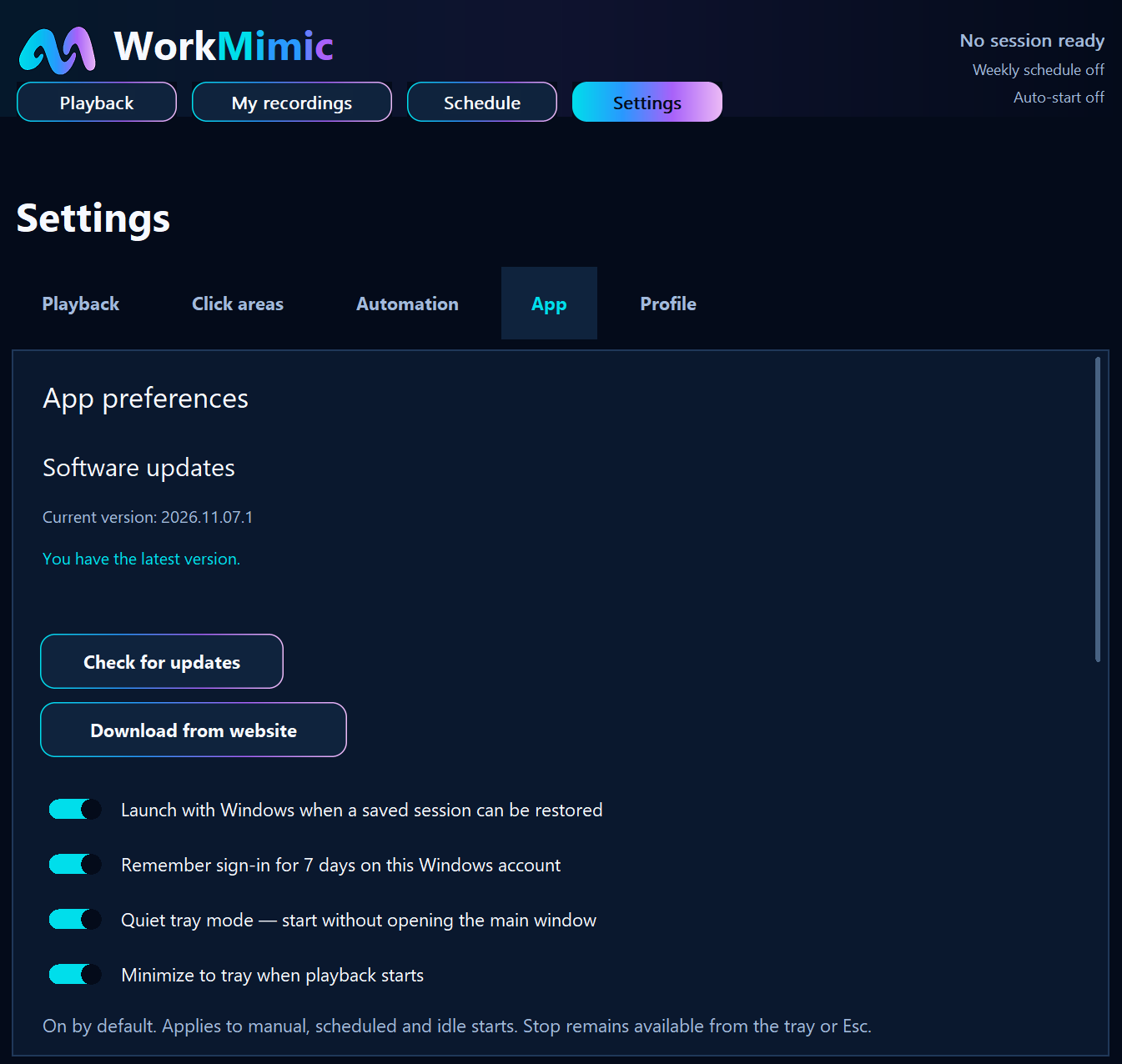
How to Configure WorkMimic for Invisible Background Operation
A step-by-step guide to Windows startup, quiet tray mode, automatic playback and weekly schedules, without keeping the main window open.
Read article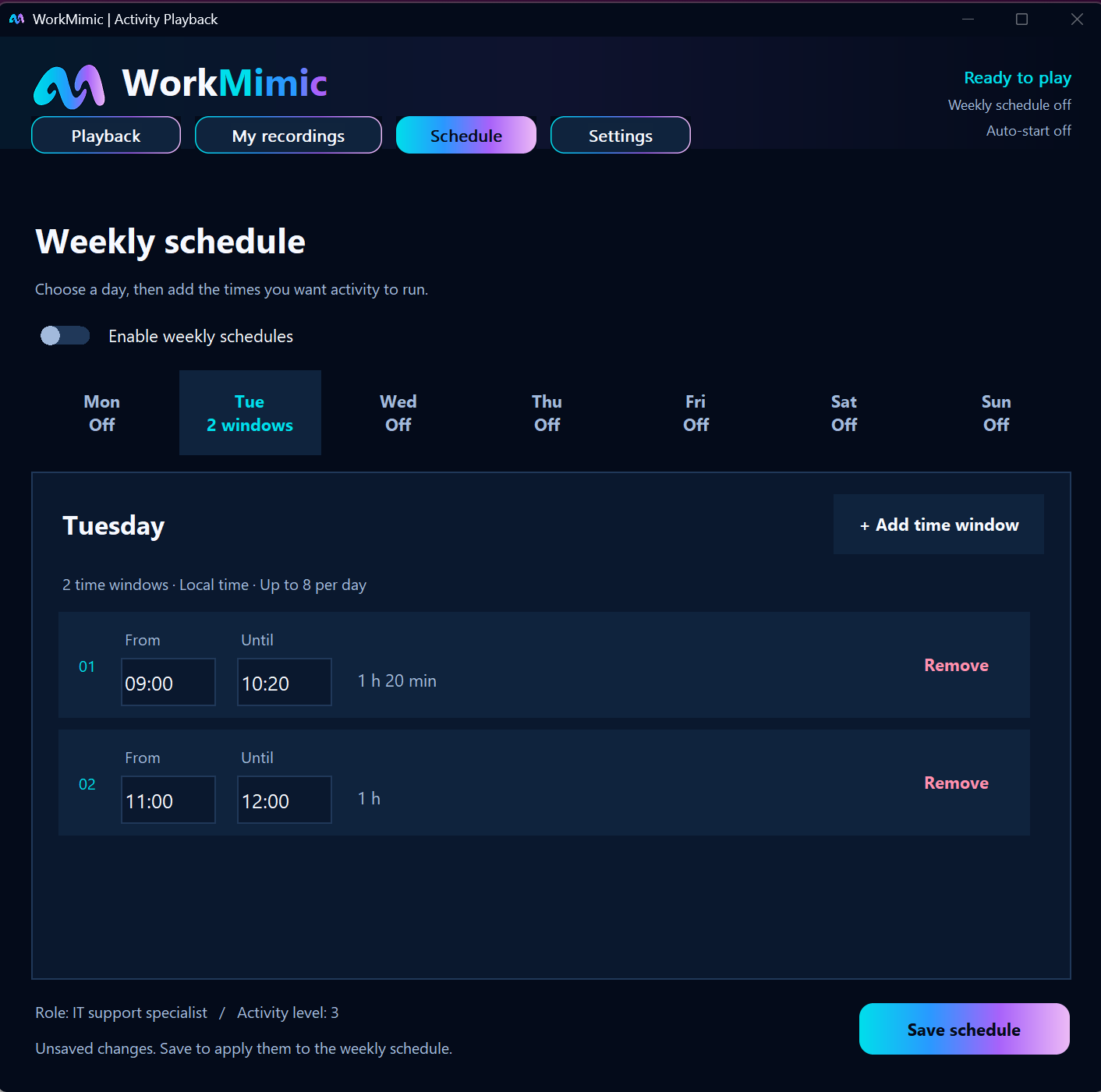
Set It and Forget It: How to Automate WorkMimic
Start when you step away, stop when you return, and follow a weekly schedule. Configure a routine that fits around your working day.
Read article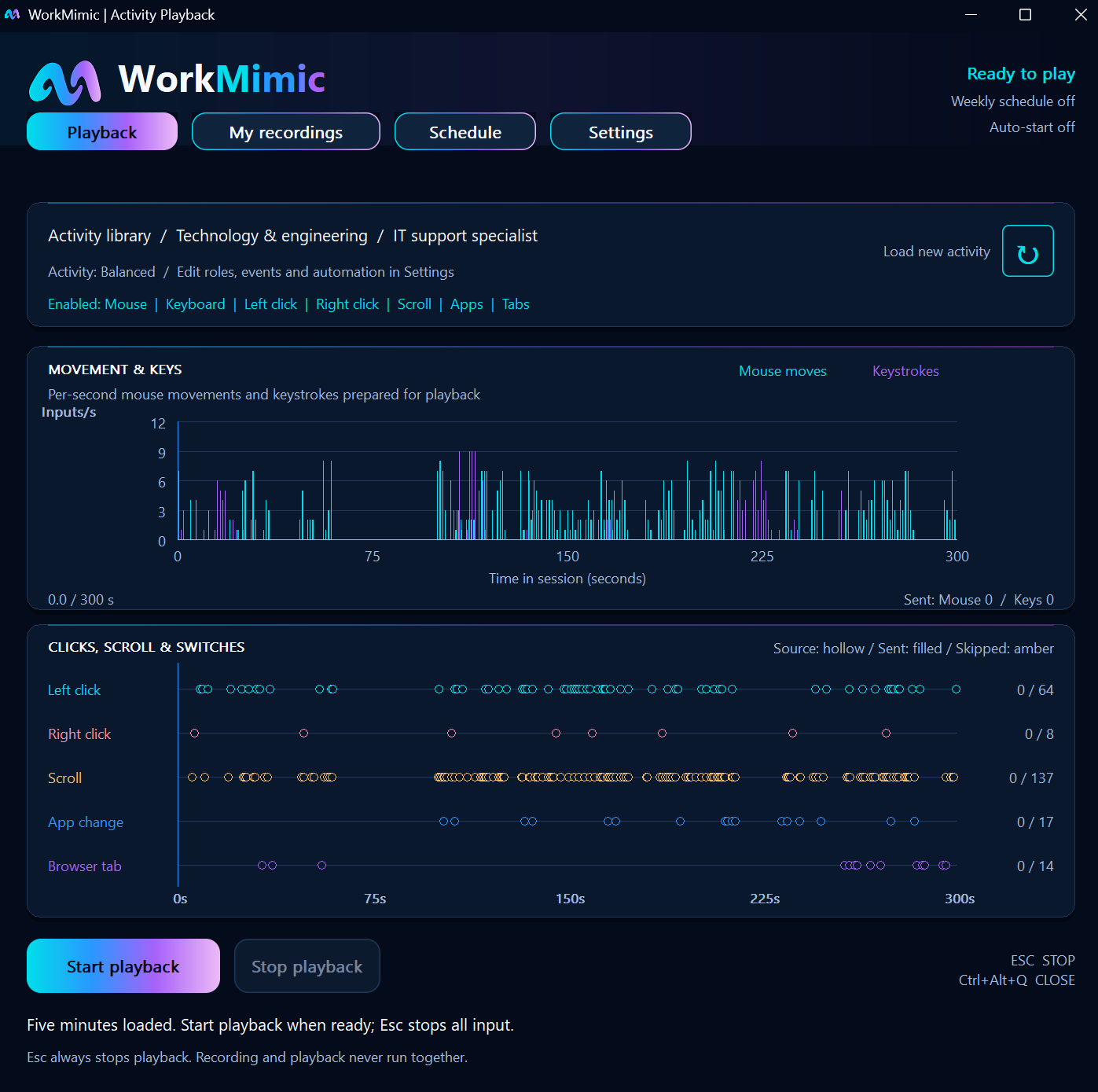
How to Customize WorkMimic Playback: Profiles, Intensity, and Input Settings
Choose a professional work profile, adjust activity intensity, select keyboard and mouse inputs, and configure click areas across your displays.
Read article