How to Configure WorkMimic for Invisible Background Operation
A step-by-step guide to Windows startup, quiet tray mode, automatic playback and weekly schedules, without keeping the main window open.
 By the WorkMimic team
WorkMimic includes several features that allow it to operate quietly in the background, without requiring you to constantly open the application, interact with its interface, or manually control playback.
This is particularly useful when working with time-tracking software such as Time Doctor, Hubstaff, Insightful, or ActivTrak, which may monitor active applications and capture periodic screenshots.
By configuring a few settings, you can make WorkMimic start automatically, begin playback when you step away, stop when you return, and follow a predefined weekly schedule.
Let’s walk through the recommended configuration for invisible background operations.
Step 1. Enable background operation
First, configure WorkMimic to launch with Windows and operate without automatically opening its main window.
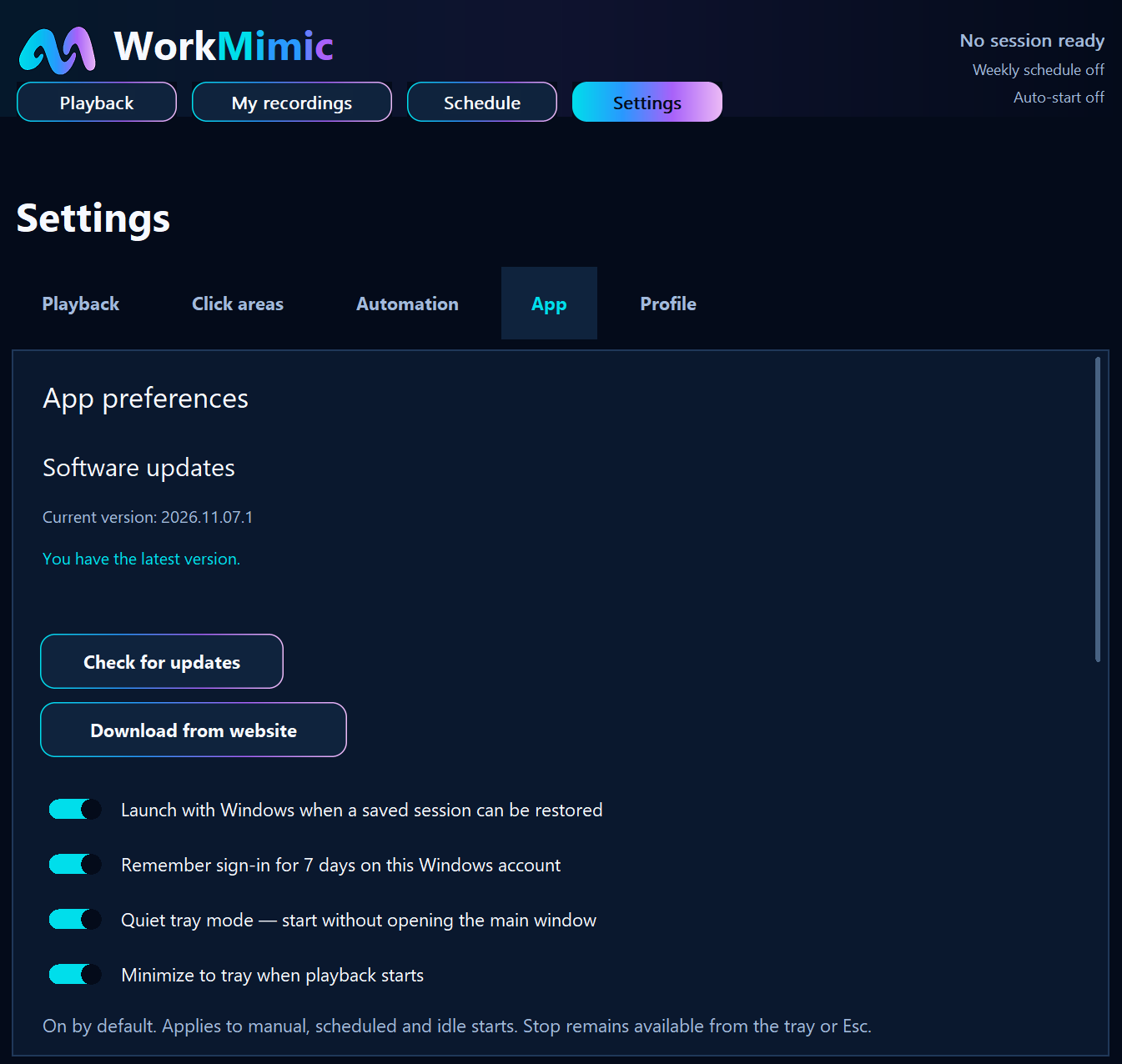
Navigate to Settings → App.
You’ll find several options under App preferences.
1. Launch with Windows
Enable Launch with Windows when a saved session can be restored.
This allows WorkMimic to start automatically when you sign in to Windows, provided a saved application session is available.
You won’t need to manually launch WorkMimic each time you restart your computer.
For convenience, you can also enable Remember sign-in for 7 days on this Windows account, which allows the application to restore your saved sign-in during that period.
2. Enable Quiet Tray Mode
Turn on Quiet tray mode - start without opening the main window.
When enabled:
- WorkMimic starts in the Windows system tray without opening its main interface.
- No WorkMimic window needs to appear on your desktop during startup.
- You can access WorkMimic through its notification-area icon whenever necessary.
The Windows system tray is located in the notification area of your taskbar, usually near the clock.
You can control WorkMimic directly from the tray:
- Left-click the icon to open the main application.
- Right-click to access playback, recording, settings, and Exit commands.
This keeps the application accessible without requiring its main window to remain open.
3. Minimize WorkMimic when playback starts
Enable Minimize to tray when playback starts.
If the WorkMimic window is open when playback begins, this setting automatically minimizes it to the system tray.
It applies to manually started playback, scheduled sessions, and idle-triggered sessions.
Why these settings matter
Time trackers may record which application is active or visible on your screen. With these settings enabled, WorkMimic can start and operate without unnecessarily bringing its own window into the foreground.
This reduces its visibility in ordinary active-window reports and screen captures, although it does not conceal the application from system-level process monitoring.
Step 2. Configure automatic playback after inactivity
Next, set up WorkMimic to start playback automatically when you haven’t interacted with your computer for a specified period.
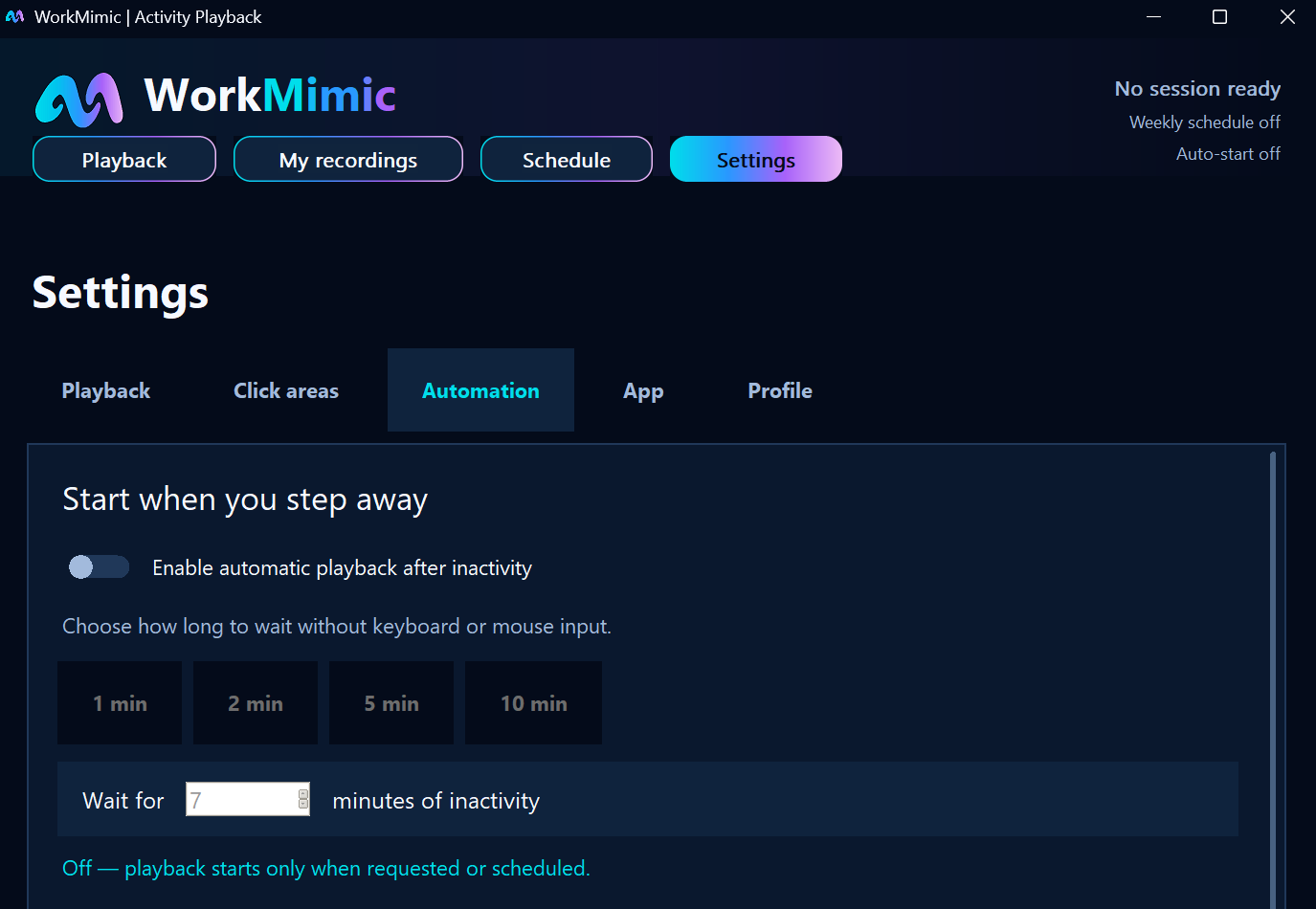
Navigate to Settings → Automation.
Find the section Start when you step away and enable:
Enable automatic playback after inactivity
You can then choose how long WorkMimic should wait before beginning playback.
Available presets include:
- 1 minute
- 2 minutes
- 5 minutes
- 10 minutes
You can also enter a custom inactivity period.
Example
Suppose you configure WorkMimic to start after 5 minutes of inactivity.
You are working on a project and stop using your keyboard and mouse to read a document, think through a complicated problem, or take a short break.
After 5 minutes without real keyboard or mouse input, WorkMimic automatically begins playback (providing that the app is still running in the tray)
You don’t need to open the application or press a button.
This allows WorkMimic to transition into playback automatically when the configured inactivity threshold is reached.
Step 3. Configure automatic stopping when you return
Just as importantly, WorkMimic can automatically stop playback when you resume interacting with your computer.
This avoids having your own keyboard and mouse activity overlap unnecessarily with WorkMimic playback.
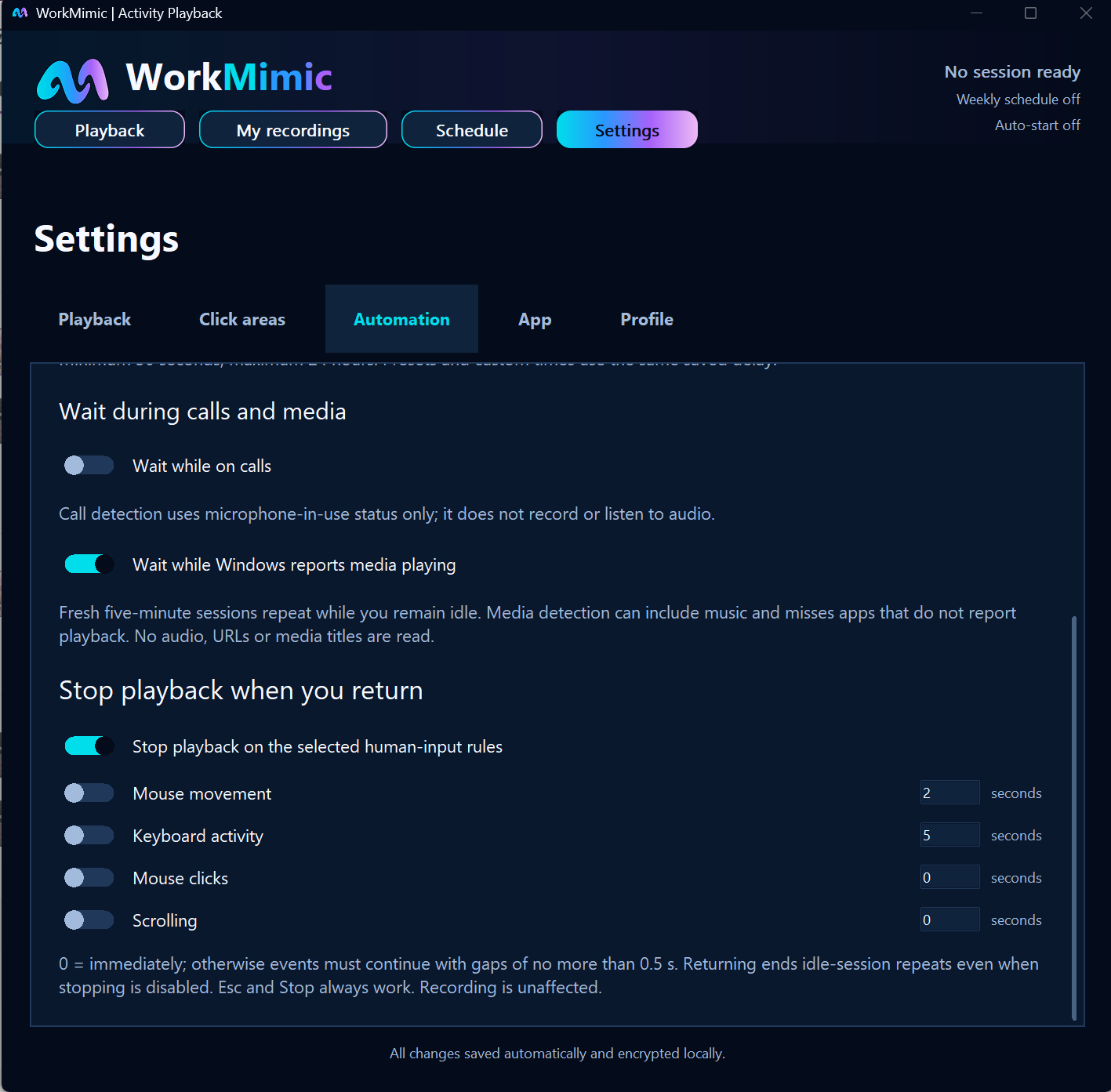
While still on Settings → Automation, scroll down to Stop playback when you return.
Enable Stop playback on the selected human-input rules.
You can configure which types of real user interactions should trigger automatic stopping:
- Mouse movement: Stop after detecting the configured duration of real mouse movement.
- Keyboard activity: Stop after detecting the configured duration of keyboard input.
- Mouse clicks: Stop when the configured click condition is satisfied.
- Scrolling: Stop when the configured scrolling condition is satisfied.
Each interaction type can be enabled or disabled independently.
You can also configure its sensitivity by specifying how long the corresponding input must continue before playback stops.
A value of 0 seconds means the selected input can trigger an immediate stop. For longer thresholds, qualifying events must continue with gaps no greater than 0.5 seconds.
Choosing the right sensitivity
For example, you might want WorkMimic to stop as soon as you begin typing, but not necessarily after a brief, accidental movement of your mouse.
Alternatively, you can use more sensitive rules to stop playback immediately when you resume interacting with the computer.
Choose the combination that best matches your working habits.
You can always stop playback manually using the Esc key or the application’s Stop control.
Why this matters
Automatic starting and stopping work together to reduce the need to access WorkMimic’s interface throughout the day.
Once configured, WorkMimic can respond to periods of inactivity and your return without requiring you to bring its window into focus.
Step 4. Configure behavior during calls and media playback
WorkMimic also provides optional settings to avoid starting or continuing activity playback in certain situations.
Under Settings → Automation, find Wait during calls and media.
Two options are available:
Wait while on calls
WorkMimic can use the microphone-in-use status to recognize when a call may be taking place.
This feature does not record or listen to your audio.
Wait while media is playing
WorkMimic can use media playback status to determine when playback should wait.
For example, this may be useful when you’re watching a training video or presentation.
These optional controls let you customize how WorkMimic behaves during different activities.
Step 5. Set up your weekly playback schedule
In addition to inactivity-based automation, WorkMimic allows you to define a weekly playback schedule.
This is useful if you have predictable working hours or want activity playback available during specific periods of the day.
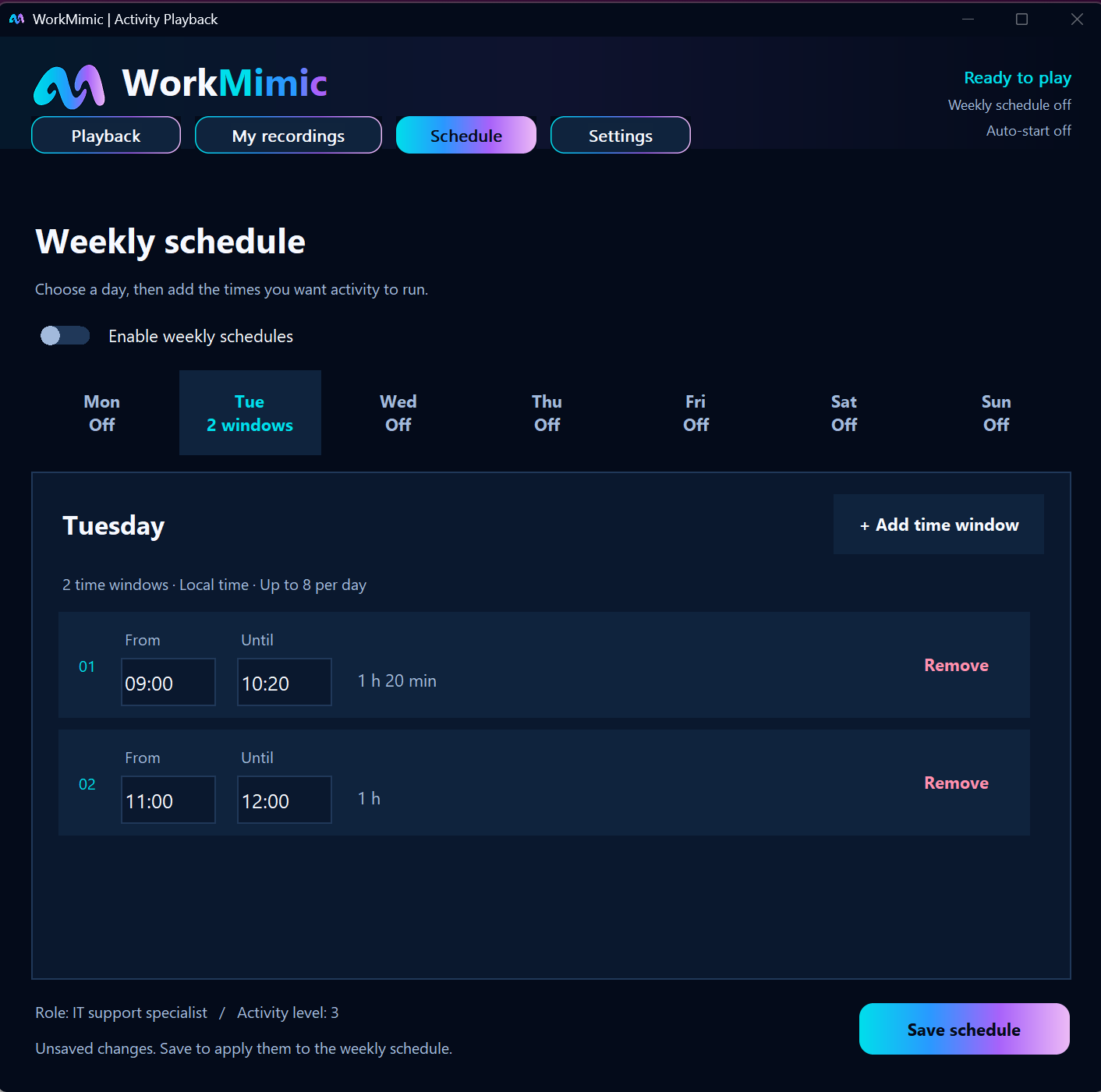
Open the Schedule section of the application.
Turn on Enable weekly schedules.
You can create separate schedules for each day of the week, with up to 8 time windows per day.
For every window, specify:
- The day of the week.
- The starting time.
- The ending time.
Example: A typical working day
| Day | Playback window |
|---|---|
| Monday | 09:00 - 12:00 |
| Monday | 13:00 - 17:00 |
| Tuesday | 09:00 - 12:00 |
| Tuesday | 13:00 - 17:00 |
| Wednesday to Friday | Your preferred windows |
| Saturday and Sunday | Disabled |
Within the configured schedule windows, WorkMimic can manage scheduled playback without requiring you to open its interface each time.
The actual schedule can be adapted to your working hours and preferences.
Once you’ve configured your time windows, click Save schedule to apply your changes.
Step 6. Check your automation status
After configuring your settings, return to the main Playback screen.
In the upper-right corner, WorkMimic displays information about the current application and automation status.
This includes indicators such as:
- Whether a playback session is ready.
- Whether the weekly schedule is enabled.
- Whether automatic starting is enabled.
You can use these indicators to confirm that your configured automation options are active.
Once everything is set up, you generally won’t need to open the main application window to start and stop playback throughout the day.

What does this configuration achieve?
With the settings above, WorkMimic can manage much of its operation automatically.
| Feature | Benefit |
|---|---|
| Launch with Windows | No need to manually start WorkMimic after every restart |
| Quiet Tray Mode | Starts without opening the main application window |
| Minimize on playback | Automatically hides the main window when playback begins |
| Idle-triggered playback | Starts automatically after the configured inactivity period |
| Human-input detection | Stops playback when selected real input conditions are met |
| Weekly schedules | Starts and stops according to predefined time windows |
| Call and media awareness | Allows playback to wait during selected activities |
Summary
You can configure WorkMimic once and let its automation features handle most day-to-day operations.
The combination of automatic Windows startup, Quiet Tray Mode, inactivity-based playback, automatic stopping, and weekly schedules means you don’t need to constantly open WorkMimic or interact with its controls.
The result is a quieter, seamless application experience that fits around your working routine.
KEEP THE IDEAS GOING
A good next read
Why WorkMimic Is Designed to Stay Invisible to Time-Tracking Tools
Understand background operation, recorded human activity, and how WorkMimic interacts with active-window tracking, activity metrics and screen captures.
Read articleSet It and Forget It: How to Automate WorkMimic
Start when you step away, stop when you return, and follow a weekly schedule. Configure a routine that fits around your working day.
Read article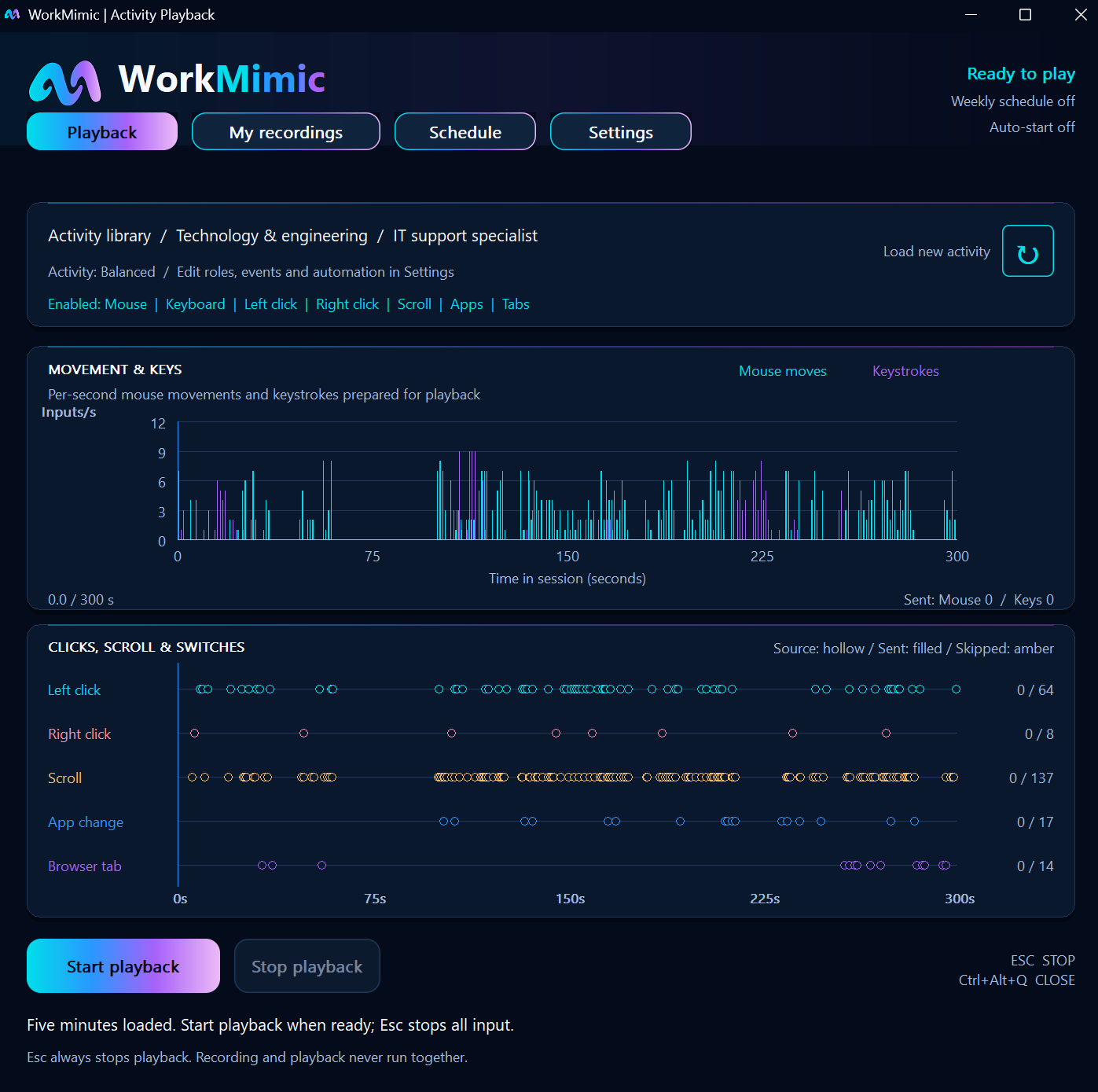
How to Customize WorkMimic Playback: Profiles, Intensity, and Input Settings
Choose a professional work profile, adjust activity intensity, select keyboard and mouse inputs, and configure click areas across your displays.
Read article