How to Customize WorkMimic Playback: Profiles, Intensity, and Input Settings
Choose a professional work profile, adjust activity intensity, select keyboard and mouse inputs, and configure click areas across your displays.
 By the WorkMimic team
Not everyone works the same way.
A software developer may spend long periods reading code before typing intensively. A graphic designer might rely heavily on mouse movements and clicks, while a project manager may switch frequently between applications, documents, and browser tabs.
Even within the same profession, people’s working habits and activity levels can be very different.
That’s why WorkMimic offers extensive customization options. Instead of using a single generic activity pattern, you can select the type of work, intensity, and individual computer interactions that best match your preferences.
In this guide, we’ll explain how to configure these settings and preview exactly what WorkMimic is preparing to replay.
1. Choose an activity profile that matches your profession
One of WorkMimic’s distinctive features is its library of real human activity patterns, organized by industry and profession.
The library includes 102 professional work profiles, covering a wide variety of occupations, from software development and IT support to marketing, design, administration, and project management.
Each profile represents a different combination of keyboard and mouse activity based on recorded computer work.
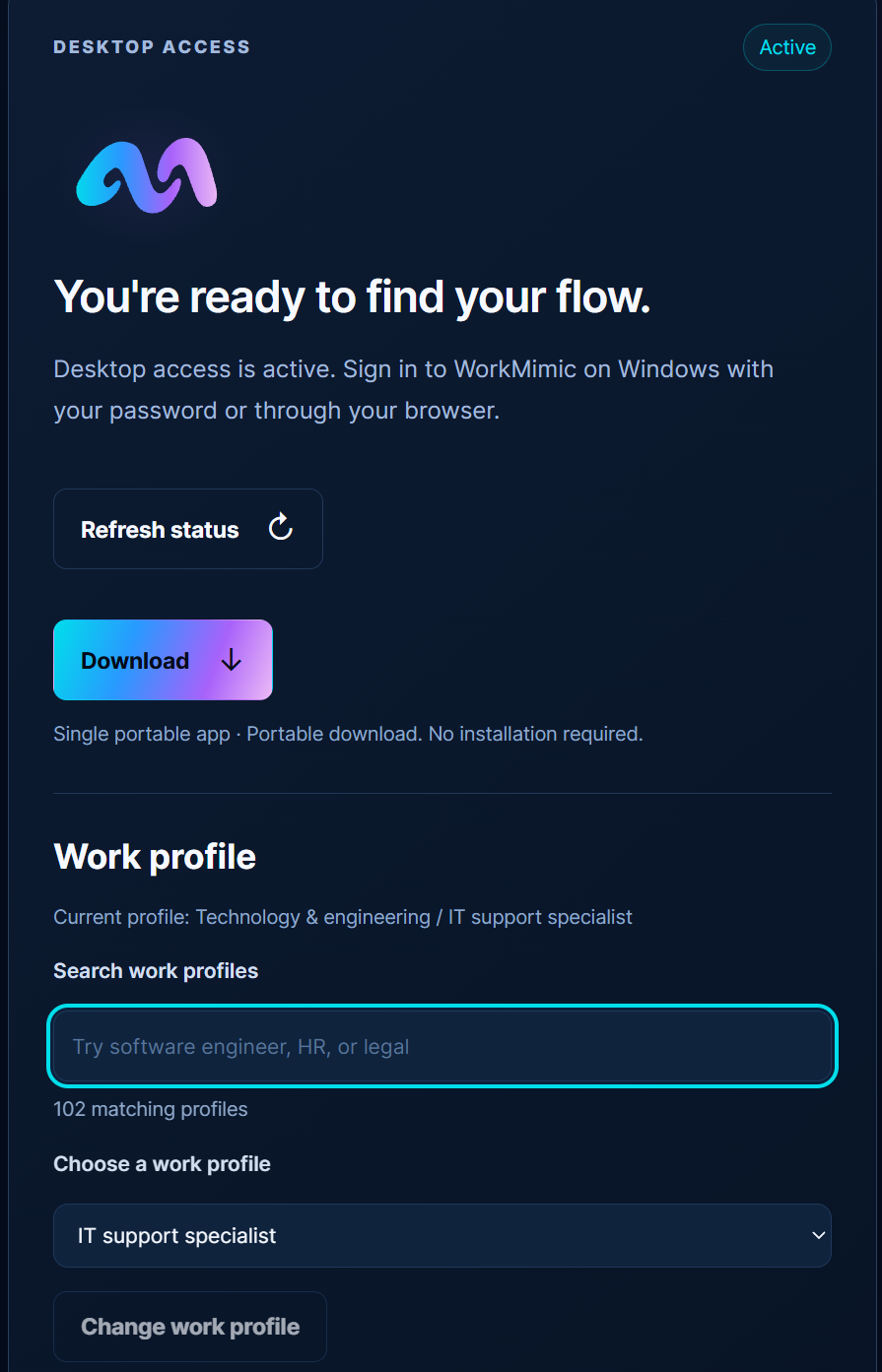
Option A: Select your work profile on the website
You can configure your preferred work profile directly from your WorkMimic account.
- Visit Your WorkMimic Account.
- Find the Work profile section.
- Browse the available professions using the dropdown menu, or start typing to search for a particular role.
- Select the profile that best matches your work.
- Click Change work profile to save your selection.
For example, you could search for “software engineer,” “IT support specialist,” or “project manager.”
Option B: Select your work profile in the desktop app
You can also choose or change your profession directly in the WorkMimic Windows application.
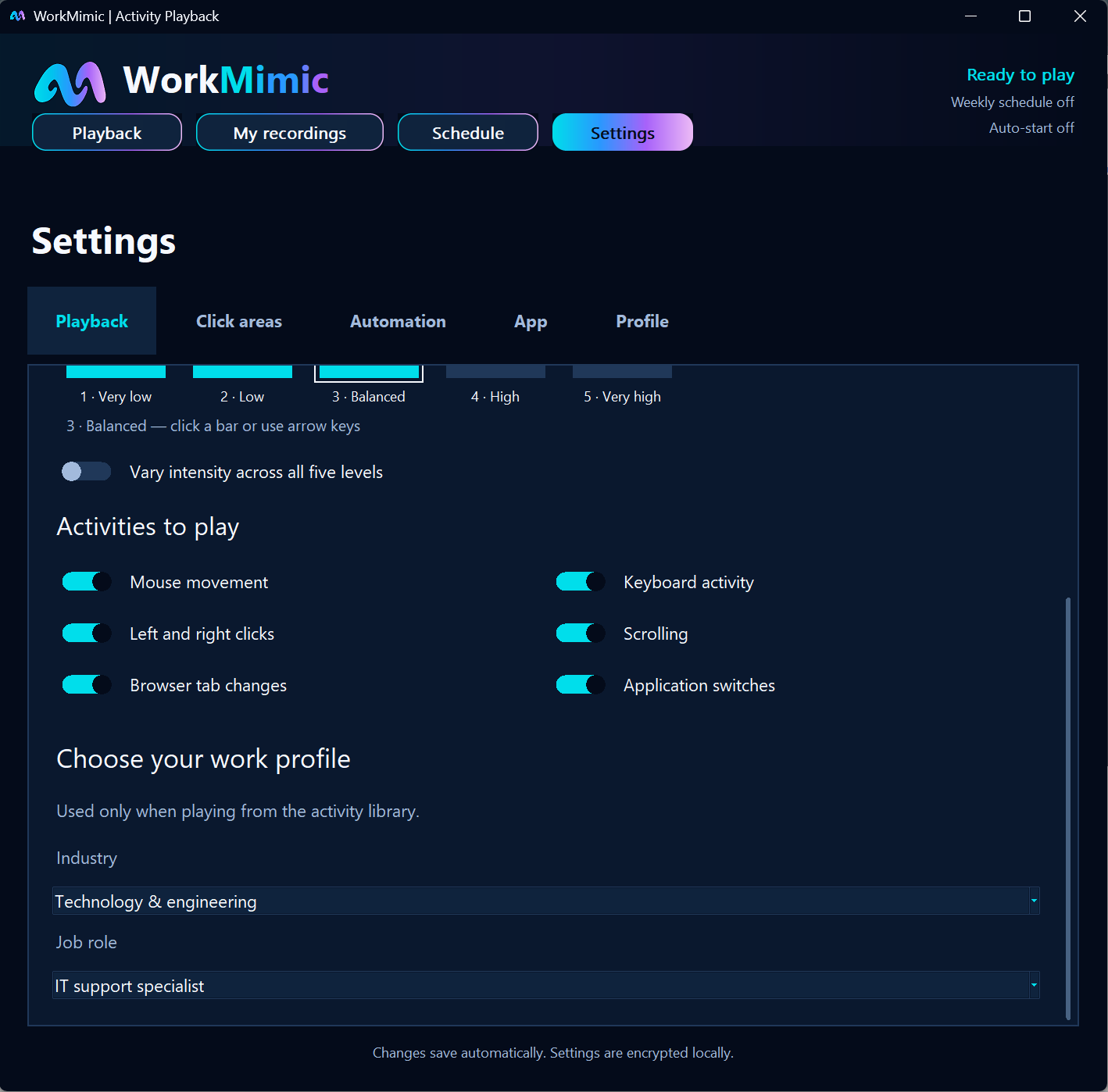
- Open Settings → Playback.
- Scroll down to Choose your work profile.
- Select your industry from the dropdown menu.
- Choose the corresponding job role.
The selected profile determines which professional activity patterns WorkMimic uses when playing from its activity library.
Note: Work profiles apply to activity library playback, not to your personal recordings.
Not sure which profile to choose?
You don’t have to commit to one profile immediately.
Visit our interactive Work Pattern Explorer to explore how keyboard and mouse activity differs between professions.
You can also experiment directly in the desktop application by switching between different work profiles and examining the resulting playback previews.
2. Adjust activity intensity: From very low to very high
Selecting the right profession is only the beginning. You can also decide how intense the playback activity should be.
After all, the same person may have periods of intense computer interaction followed by quieter periods of reading, thinking, or reviewing information.
WorkMimic lets you choose between five activity intensity levels.
These levels filter the recorded human activity library so that playback uses activity segments matching your chosen intensity.
The five activity intensity levels
| Level | Name | Typical activity pattern |
|---|---|---|
| 1 | Very low | Long pauses with occasional keyboard or mouse interactions |
| 2 | Low | Relatively infrequent activity with substantial idle periods |
| 3 | Balanced | Moderate activity with natural variations and pauses |
| 4 | High | Frequent keyboard and mouse interactions with shorter pauses |
| 5 | Very high | Dense activity, frequent inputs, scrolling, and application or tab changes |
Level 3 - Balanced is the default setting.
Let’s look at how different intensity levels affect the recorded activity patterns.
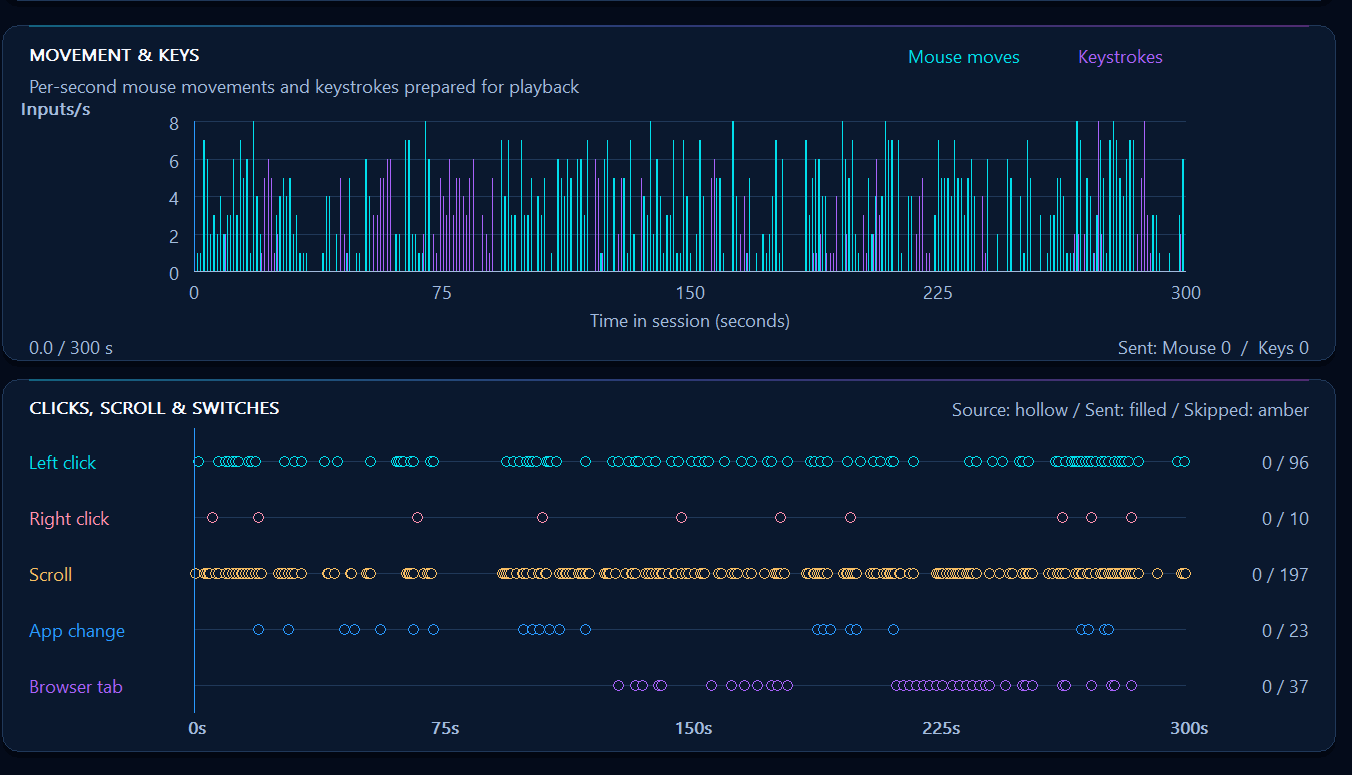
Very high intensity: Frequent computer interaction
At the highest intensity, WorkMimic selects activity segments containing frequent keyboard and mouse interactions.
These may include substantial typing, scrolling, clicking, and switching between applications or browser tabs.
In the activity chart, you’ll see relatively dense activity throughout the playback session, with comparatively few long pauses.
Balanced intensity: A mix of activity and pauses
Balanced intensity is designed for a more moderate pattern of computer interaction.
Instead of constant activity, you’ll see more noticeable breaks between bursts of typing, mouse movement, and scrolling.
This is the default intensity level in WorkMimic.
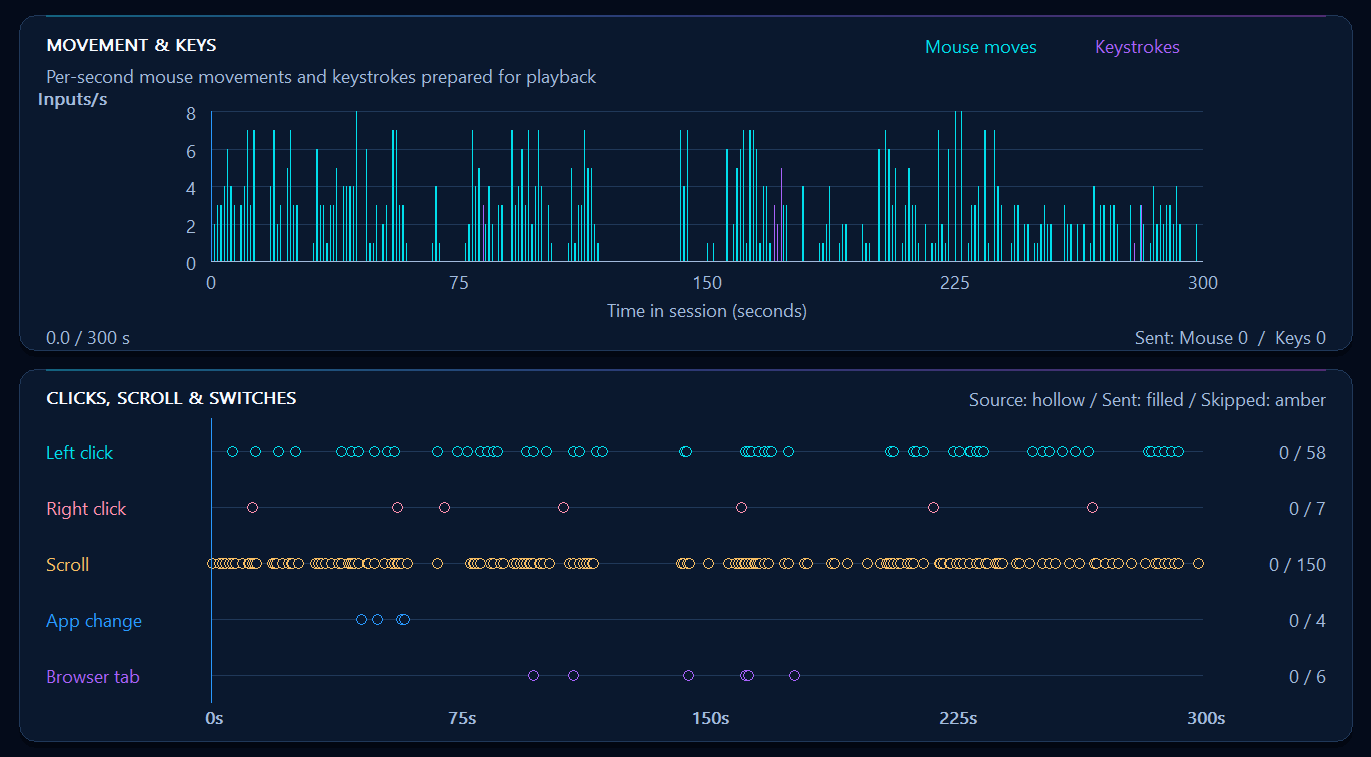
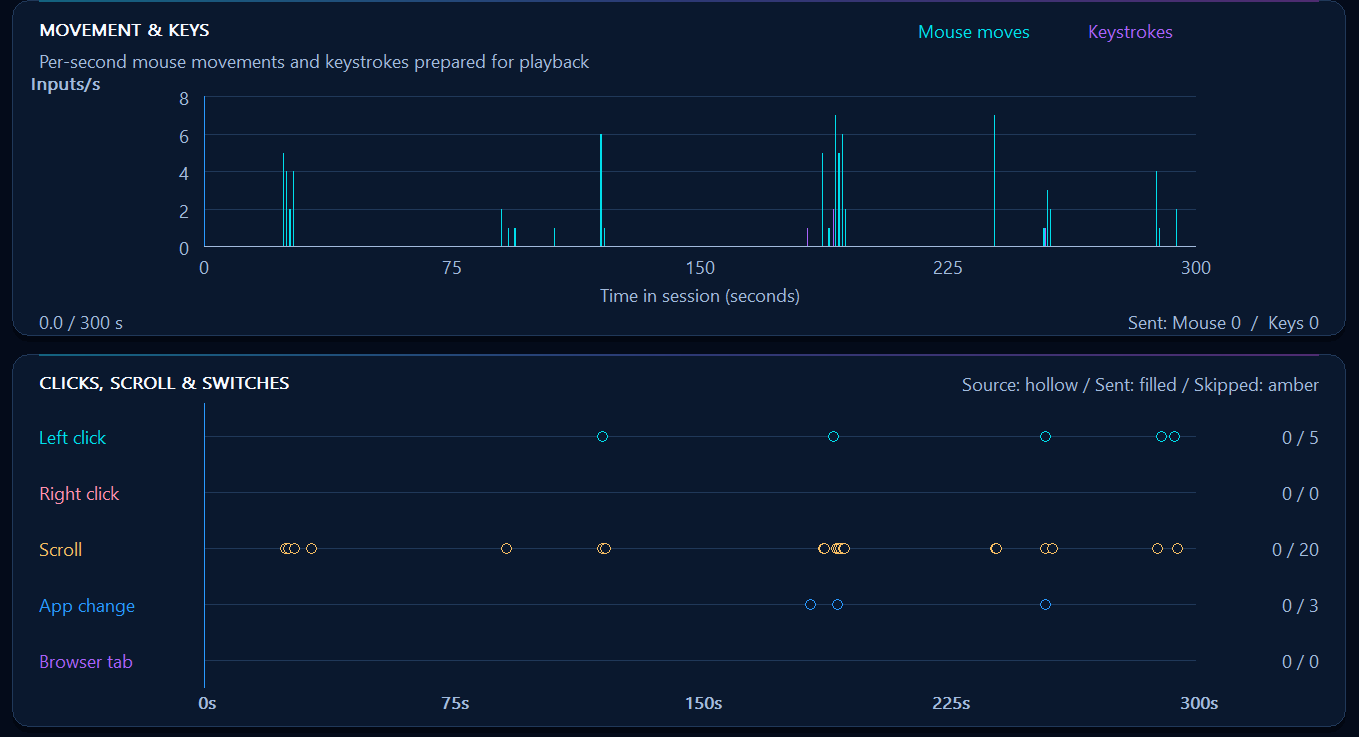
Low intensity: More pauses, fewer inputs
Lower intensity levels select recordings containing less frequent computer interaction.
You may see longer gaps between keyboard or mouse events and fewer clicks, scrolling actions, or window changes.
This type of activity is common in work that involves substantial reading, analysis, planning, or thinking.
Low keyboard and mouse activity doesn’t necessarily mean low productivity. Different tasks require different levels of computer interaction.
Varied intensity: Combine different activity levels
Human activity doesn’t usually remain at exactly the same intensity throughout the day.
Sometimes we’re typing rapidly. Other times we’re reading, scrolling through documents, or taking a moment to think.
WorkMimic offers a dedicated setting to introduce this variation.
Enable Vary intensity across all five levels to allow WorkMimic to select activity minutes from different intensity categories.
This creates a playback sequence that combines quieter and more active periods instead of remaining within a single intensity level.
How to change your intensity settings
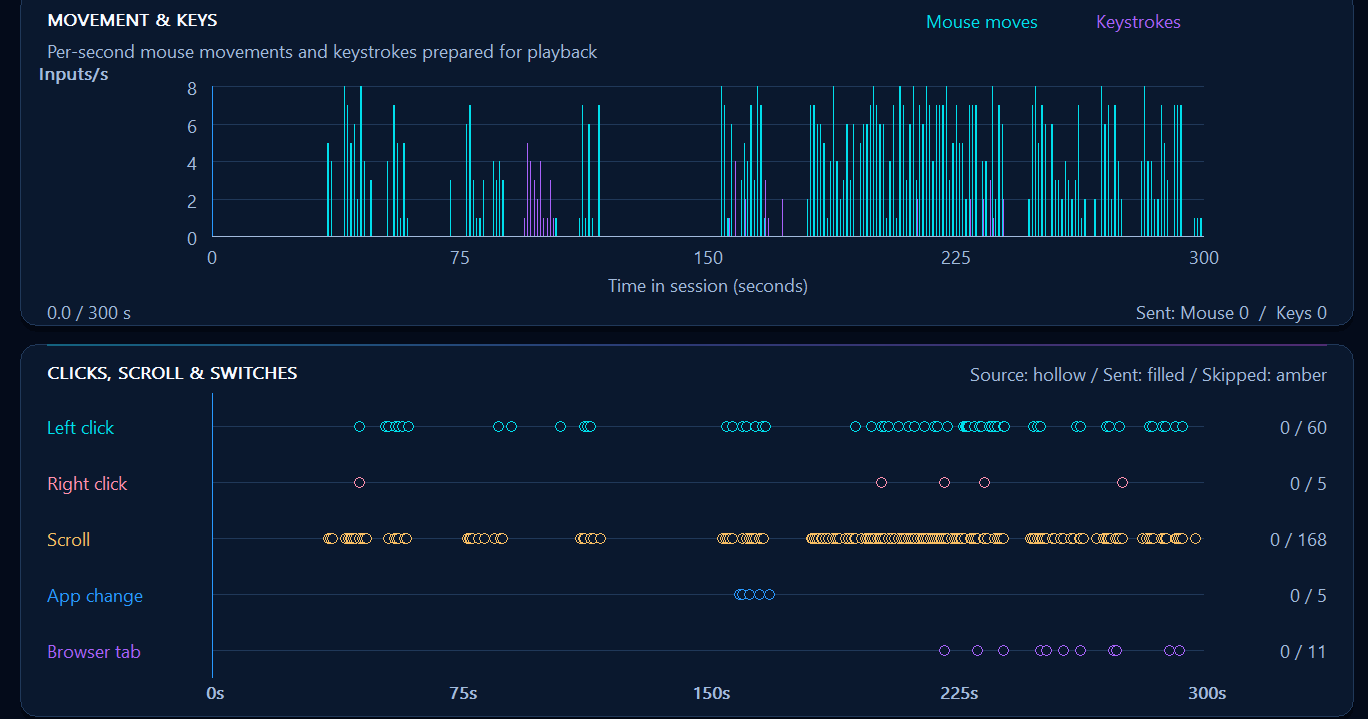
Navigate to Settings → Playback → Activity intensity.
You can select any of the five levels or enable Vary intensity across all five levels.
The application will use these settings when selecting activity from the library.
Tip: Experiment with different intensity levels and examine the playback graphs to understand how they affect the activity sequence.
3. Choose exactly which activities WorkMimic should replay
WorkMimic doesn’t limit you to choosing a profession and intensity level.
You can also select which types of computer interactions should be included in playback.
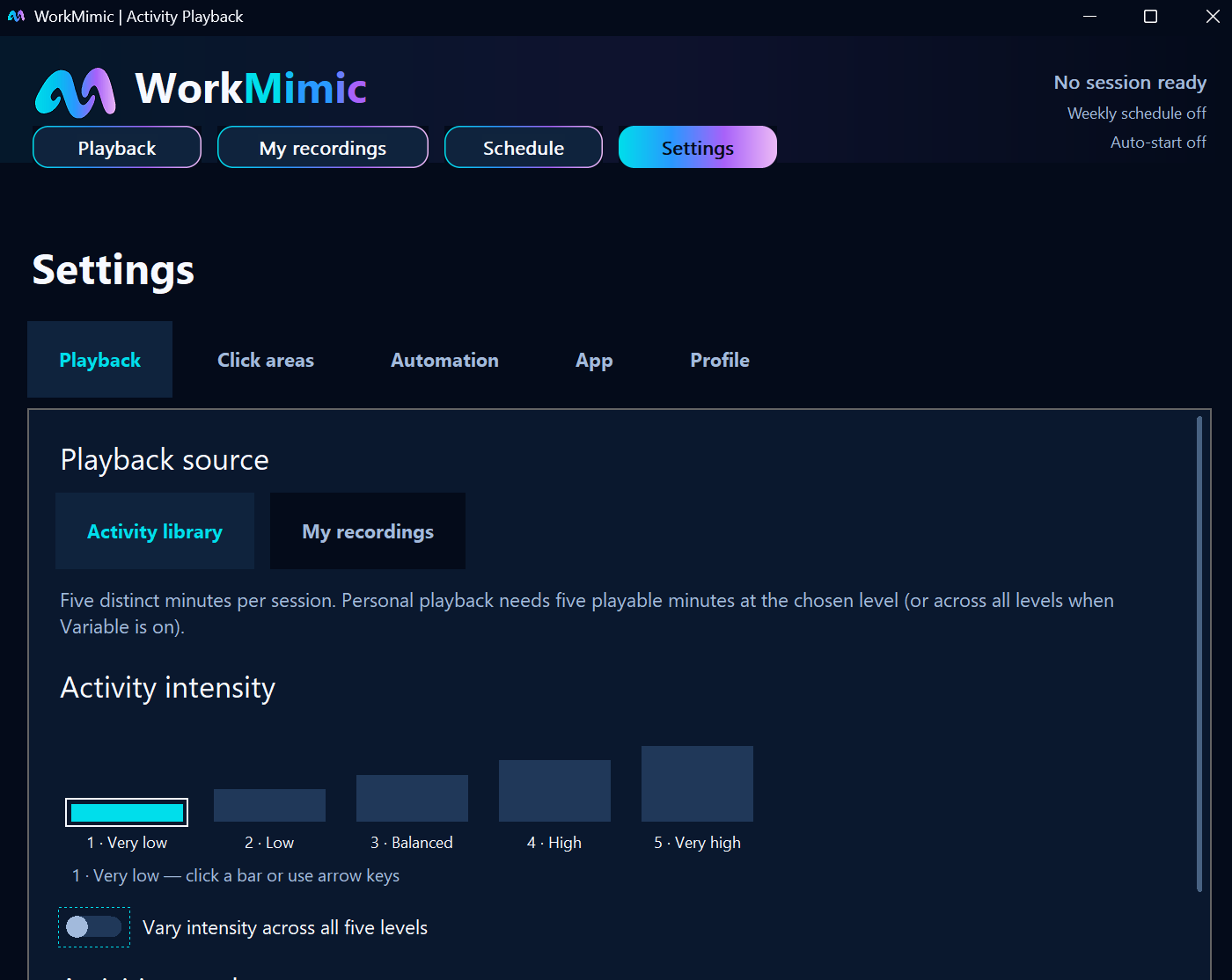
Navigate to Settings → Playback and find the Activities to play section.
Six categories of activity are available:
- Mouse movement: Replays recorded cursor movement activity.
- Keyboard activity: Replays keyboard input events.
- Left and right clicks: Includes mouse click events during playback.
- Scrolling: Replays recorded scrolling actions.
- Application switches: Includes switching between applications.
- Browser tab changes: Includes navigation between browser tabs.
Each category can be enabled or disabled independently.
Why would you disable certain activities?
Perhaps you want to reproduce mouse activity but prefer not to include keyboard events.
Or you might want keyboard and mouse activity without switching between applications or browser tabs.
WorkMimic allows you to configure these combinations according to your preferences.
For example:
| Your preference | Suggested enabled activities |
|---|---|
| Mouse movement only | Mouse movement |
| Keyboard and mouse interaction | Keyboard activity, mouse movement |
| No application or tab switching | Keyboard, mouse, clicks, scrolling |
| Full range of interactions | All six activity categories |
We generally recommend keeping the complete range of activity types enabled if you want the playback to preserve more of the variation found in the original human recordings.
However, it’s entirely up to you which activities to include.
What happens to disabled activity types?
Disabling an activity type doesn’t remove it from the underlying recording.
The events remain visible in the activity preview, but they are skipped during actual playback.
For example, if you disable browser tab changes, you may still see those events represented on the playback timeline, but WorkMimic won’t execute them.
This allows you to preserve the original activity data while controlling which events are actually replayed.
4. Preview your activity before starting playback
One of the most useful features of WorkMimic is the ability to inspect the selected activity before playing it.
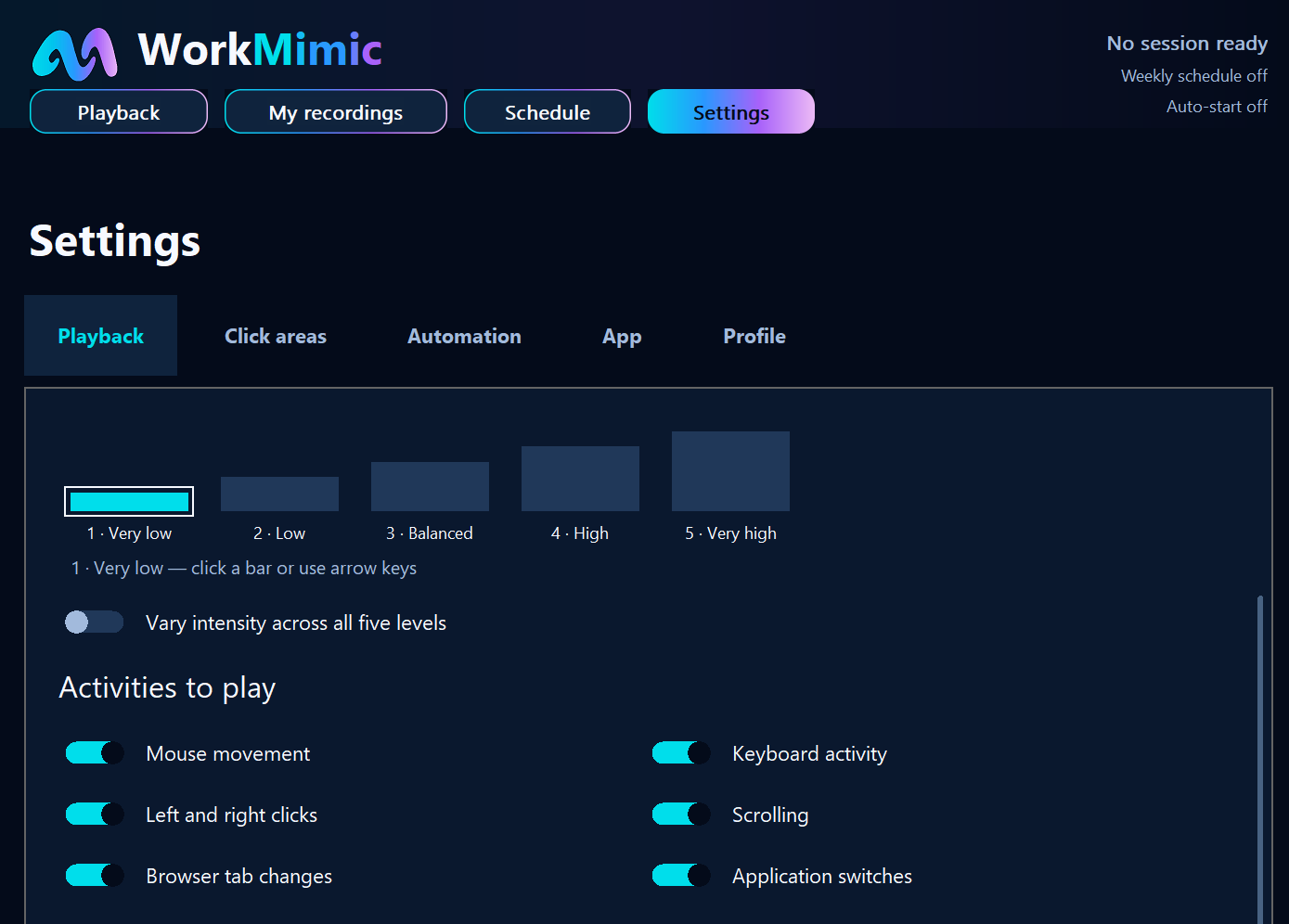
The main Playback screen displays a detailed preview of the next five minutes of activity.
At the top, you can see your currently selected work profile, activity intensity, and enabled event types.
Below that, WorkMimic displays two complementary visualizations.
Keyboard and mouse movement chart
The first chart shows keyboard and mouse movement activity throughout the five-minute period.
It allows you to see:
- When keyboard activity occurs.
- When mouse movements occur.
- How intense those interactions are.
- How activity changes throughout the session.
- Where pauses and quieter periods appear.
The horizontal axis represents time in seconds, while the vertical axis shows the number of recorded inputs per second.
Clicks, scrolling, and switching timeline
The second visualization shows individual categories of events on separate timelines.
These include:
- Left clicks.
- Right clicks.
- Scrolling.
- Application changes.
- Browser tab changes.
This gives you a more detailed picture of how the selected activity sequence is structured.
Don’t like the selected activity? Load another one.
WorkMimic selects five minutes of recorded activity for the next playback session.
If you’d prefer a different sequence, click Load new activity in the upper-right corner of the Playback panel.
WorkMimic will refresh the selection using your current work profile, intensity level, and other settings.
You can repeat this until you find a sequence that suits your preferences.
Tip: Try switching between professions and intensity levels, then use Load new activity to explore how different the resulting patterns can be.
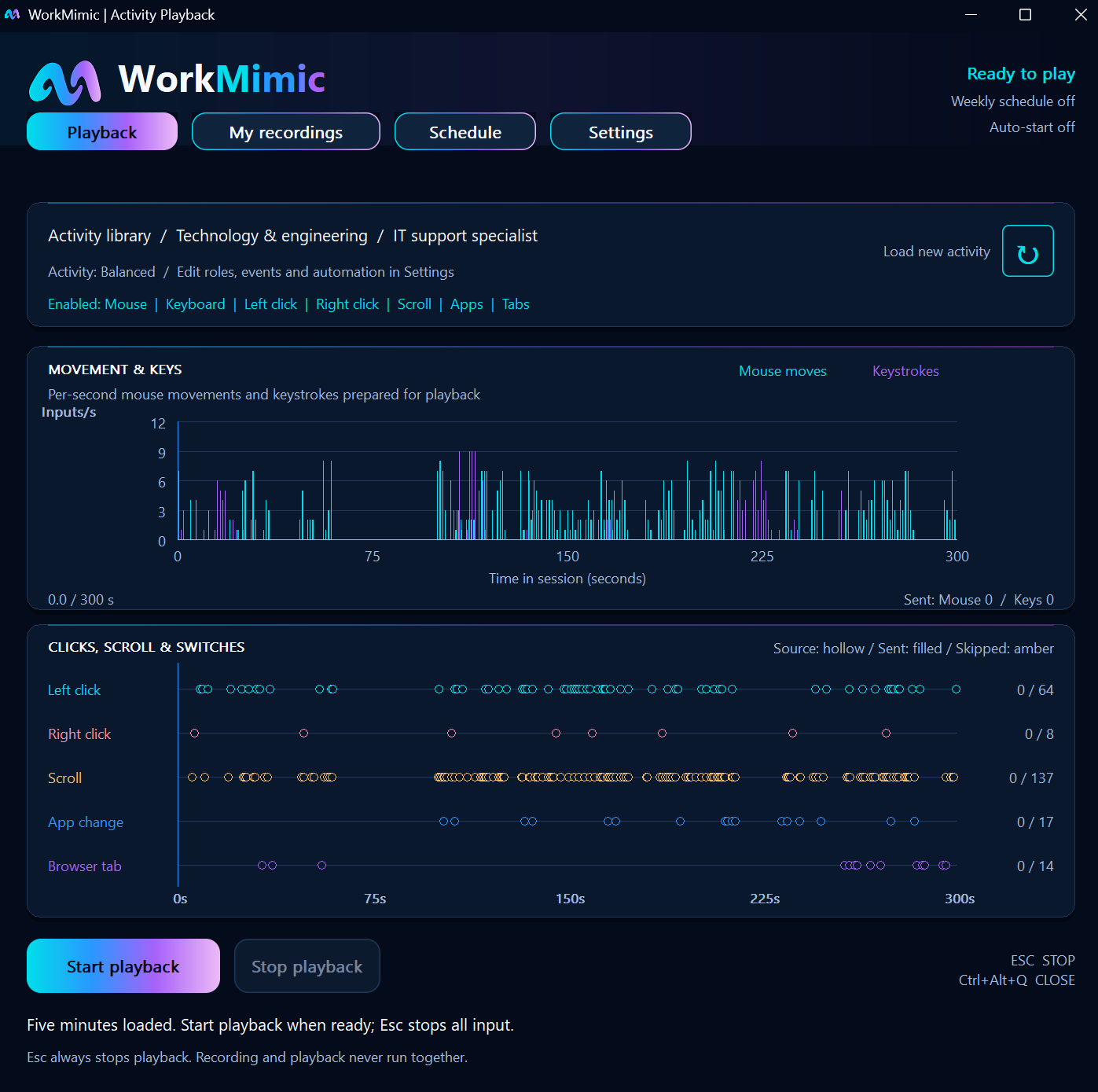
The main Playback tab will show you the activity that is currently enabled.

You can also control intensity level and event types in the context menu (right click) on the WorkMimic icon in the tray.
5. Configure safe areas for mouse clicks
Mouse clicks deserve special attention because, unlike simple mouse movements, they can cause actions in the applications you’re using.
A click may activate a button, open a menu, submit a form, or trigger an unwanted command.
WorkMimic provides a feature that lets you limit where playback-generated clicks can occur.
How safe click areas work
Instead of allowing clicks anywhere on the screen, you can define specific regions where mouse clicks are permitted.
When click areas are configured, WorkMimic restricts playback clicks to those selected regions.
You can configure these areas separately for each connected display.
How to configure click areas
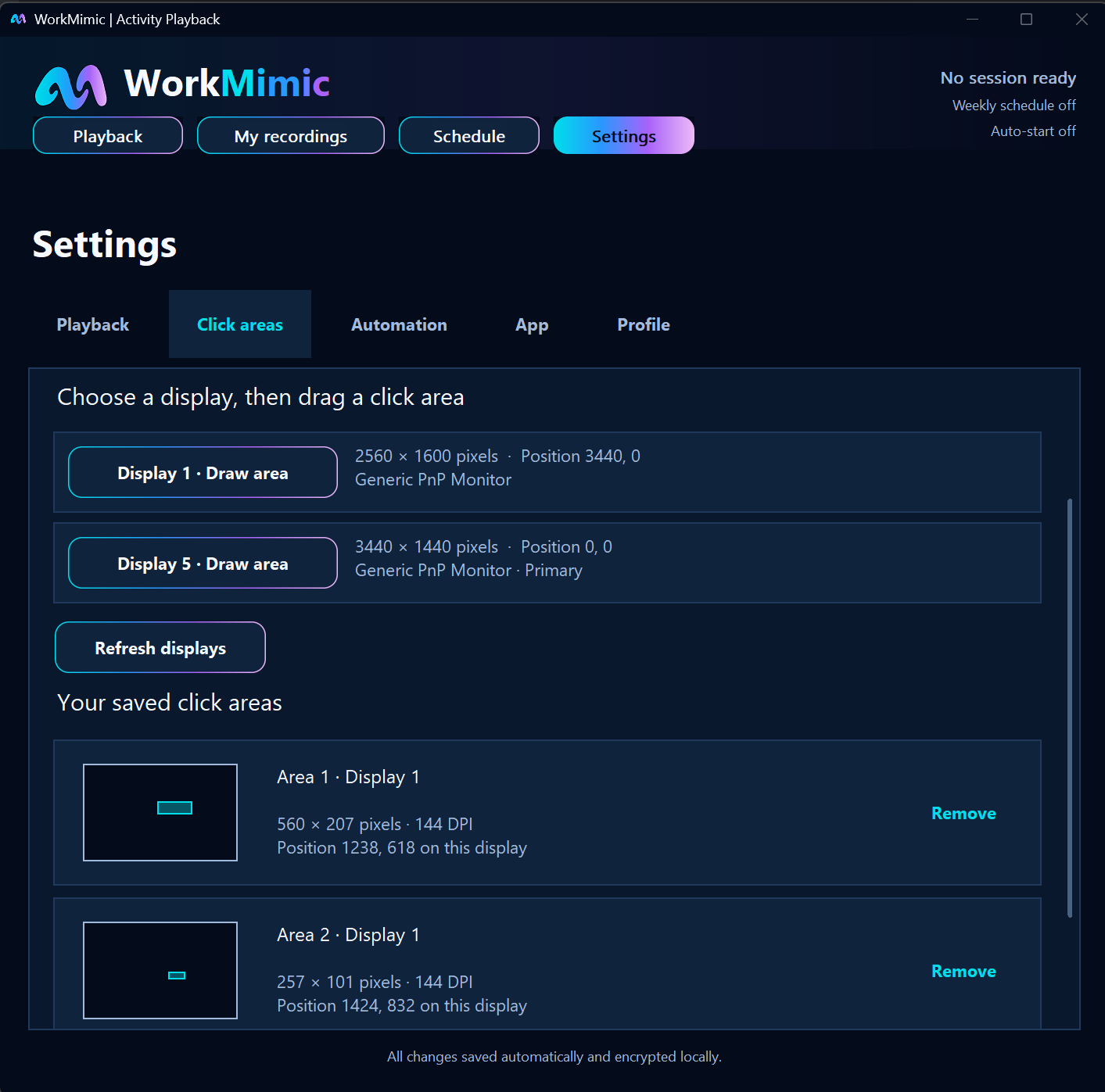
- Open Settings → Click areas.
- Select the monitor you want to configure.
- Click the corresponding Draw area button.
- Define a region of the screen where clicks should be permitted.
- Repeat the process for additional areas or monitors as needed.
The configured regions will appear under Your saved click areas.
You can review them or remove areas that you no longer need.
If you’ve connected or disconnected monitors, use Refresh displays to update the list of available screens.
How to choose appropriate click areas
Choose regions where an occasional click is unlikely to interfere with your applications or cause unwanted changes.
Avoid areas containing:
- Delete, reset, or confirmation buttons.
- Form submission controls.
- Important application menus.
- Other interface elements that could trigger undesirable actions.
Important: A location that’s safe to click in one application may contain an interactive control in another. Review your configured regions whenever you change your desktop layout or the applications you’re using.
If you’re concerned about unexpected clicks, you can also disable click playback entirely in Settings → Playback → Activities to play.
6. Change playback settings quickly from the system tray
You don’t always need to open the main WorkMimic window to adjust your playback preferences.
Several important settings are also available directly from the Windows system tray.
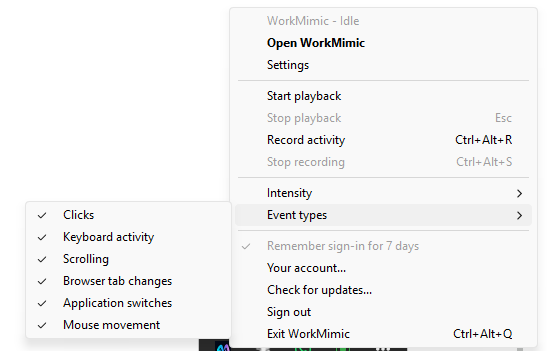
Locate the WorkMimic icon in the taskbar notification area, usually near the clock, and right-click it.
The context menu provides access to playback controls and settings.
In particular, you can use:
Intensity
Quickly change the activity intensity without navigating to the main settings screen.
Event types
Enable or disable specific playback activities, including keyboard input, mouse movement, clicks, scrolling, browser tab changes, and application switches.
This can be particularly convenient when you want to adjust the playback behavior without interrupting your workflow to open and navigate the full application interface.
7. Create your preferred playback configuration
With all these settings available, you can build a configuration that reflects your preferred way of using WorkMimic.
Here’s a practical approach to getting started.
First, choose your profession.
Select the industry and job role that best match your work. If you’re unsure, explore several profiles using the Work Pattern Explorer or the in-app preview.
Next, select an intensity level.
Start with Balanced if you don’t have a strong preference. Try lower or higher levels to see the difference, or enable variable intensity to combine activity from all five categories.
Then, configure the activities to replay.
Decide whether you want the full combination of keyboard, mouse, scrolling, and application switching events, or just a subset.
Configure safe click areas.
If mouse clicks are enabled, define suitable regions on each monitor to reduce the risk of unwanted interactions.
Finally, preview the result.
Return to the Playback screen, inspect the five-minute activity charts, and load a different sequence if needed.
Once you’re satisfied, your playback preferences are ready to use.
Frequently asked questions
Can I change my work profile after selecting one?
Yes. You can change your work profile through your online WorkMimic account or in the desktop application’s Playback settings.
Do I have to use the same activity intensity all the time?
No. You can change the intensity whenever you like or enable Vary intensity across all five levels to select activity minutes from different intensity categories.
Can I disable keyboard or mouse clicks?
Yes. All six categories of activity can be controlled independently. You can disable any category you don’t want to include.
Will disabled activities disappear from the playback preview?
No. The original events can still be displayed on the timeline, but disabled categories are ignored during playback.
Can I change playback settings without opening WorkMimic?
Yes. You can change the activity intensity and enabled event types directly from the application’s system tray context menu.
Can I customize playback for multiple monitors?
Yes. The Click areas settings allow you to define permitted click regions separately for connected displays.
Can I use my own recorded activity instead of the WorkMimic library?
WorkMimic also offers My recordings as an alternative playback source. This guide focuses on configuring activity from the professional library, where work profiles and intensity-based selection are available.
Final thoughts: Your work patterns, your preferences
WorkMimic is designed to offer more than a single, generic pattern of computer activity.
With 102 professional profiles, five intensity levels, variable-intensity playback, six individually configurable activity categories, and customizable mouse click areas, you have extensive control over how playback behaves.
And because the application provides detailed five-minute activity previews, you can see the selected patterns before starting playback.
Choose your profession. Set your intensity. Customize your inputs. Make WorkMimic work the way you want.
KEEP THE IDEAS GOING
A good next read
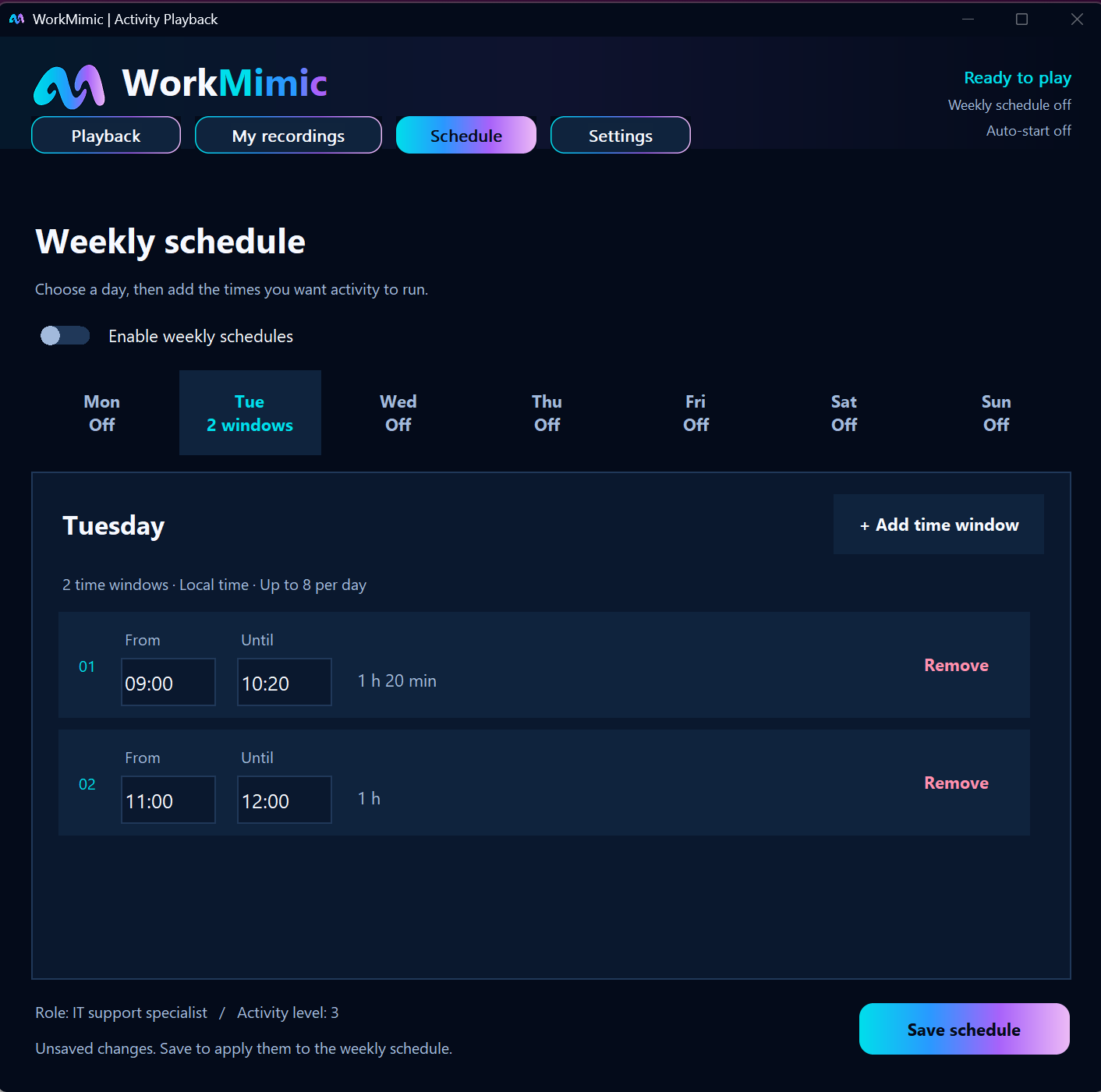
Set It and Forget It: How to Automate WorkMimic
Start when you step away, stop when you return, and follow a weekly schedule. Configure a routine that fits around your working day.
Read article
How to Configure WorkMimic for Invisible Background Operation
A step-by-step guide to Windows startup, quiet tray mode, automatic playback and weekly schedules, without keeping the main window open.
Read articleWhy WorkMimic Is Designed to Stay Invisible to Time-Tracking Tools
Understand background operation, recorded human activity, and how WorkMimic interacts with active-window tracking, activity metrics and screen captures.
Read article