Set It and Forget It: How to Automate WorkMimic
Start when you step away, stop when you return, and follow a weekly schedule. Configure a routine that fits around your working day.
 By the WorkMimic team
One of the biggest conveniences of WorkMimic is that you don’t need to constantly manage it.
Imagine having to remember to start an application every time you step away from your computer, pause to think, take a coffee break, or get distracted by something else. Then you’d have to remember to stop it when you return.
That’s exactly the kind of unnecessary hassle WorkMimic is designed to eliminate.
With its built-in automation features, you can configure WorkMimic once and let it take care of the rest. It can automatically detect when you’ve stopped using your computer, start playback after a predefined period, and stop when you resume working.
You can also create weekly schedules, configure behavior during calls, and have WorkMimic launch automatically with Windows.
Here’s how to make the most of these features.
1. Automatic start: WorkMimic knows when you step away
No more remembering to press Start every time you take a break.
WorkMimic can automatically begin activity playback when your computer has been idle for a specified period.
To enable this feature:
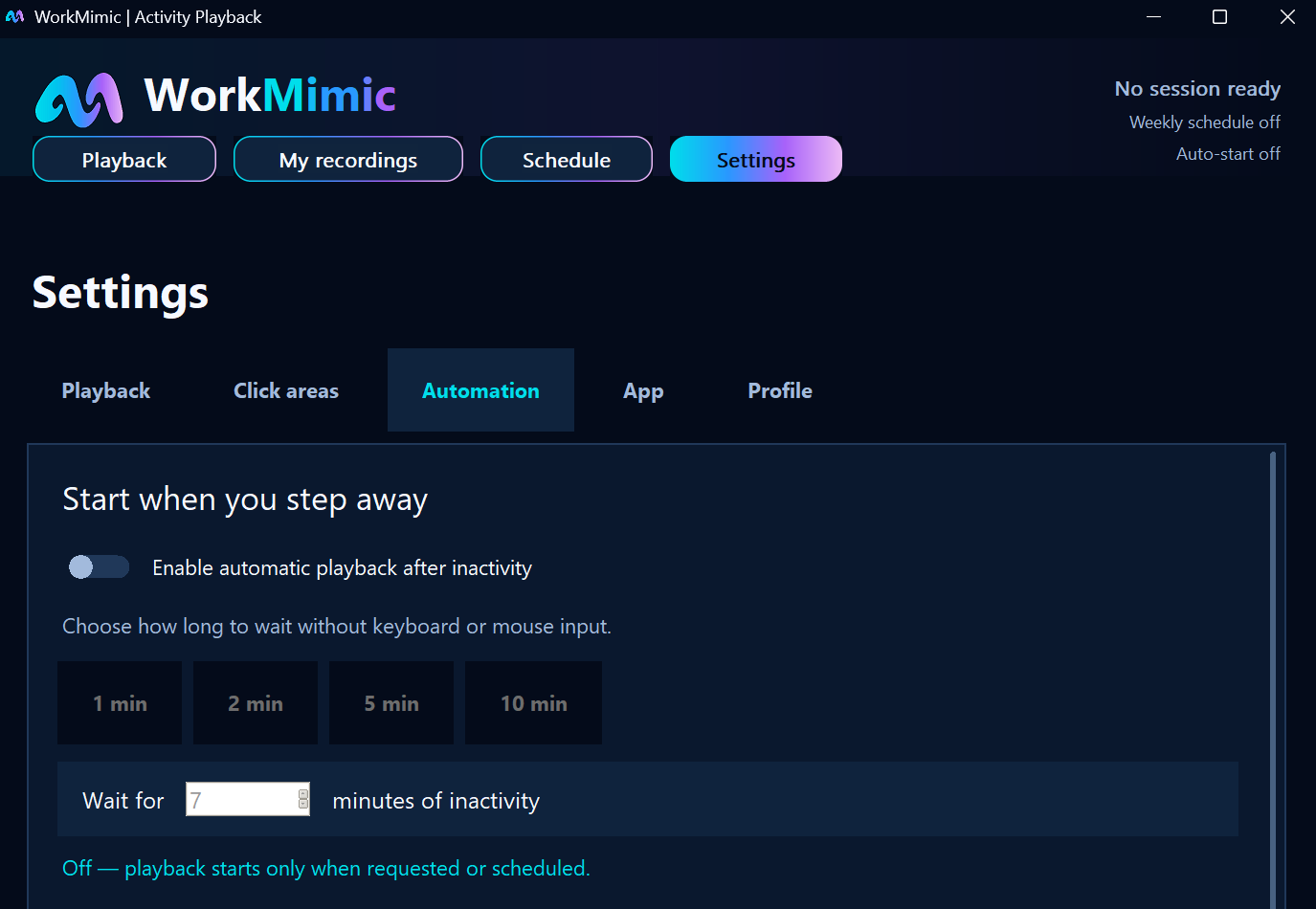
- Open Settings → Automation.
- Find the Start when you step away section.
- Enable Enable automatic playback after inactivity.
- Choose your preferred inactivity threshold.
You can select one of the predefined intervals (1, 2, 5, or 10 minutes) or enter a custom value.
How does it work in practice?
Let’s say you set the inactivity threshold to 3 minutes.
You’re working on a project, and suddenly you need some time to think about a complicated problem. You take your hands off the keyboard and mouse and focus on figuring things out.
After 3 minutes without real keyboard or mouse input, WorkMimic automatically starts playback, provided its other startup conditions are satisfied.
The same happens when you get up to make coffee, take a short break, or step away from your desk for any other reason.
You don’t need to remember anything. WorkMimic takes care of starting playback automatically.
2. Automatic stop: WorkMimic recognizes when you’re back
Starting playback automatically is only half the story. WorkMimic can also recognize when you return to your computer and stop playback.
This means you don’t need to manually stop the application before resuming your work.
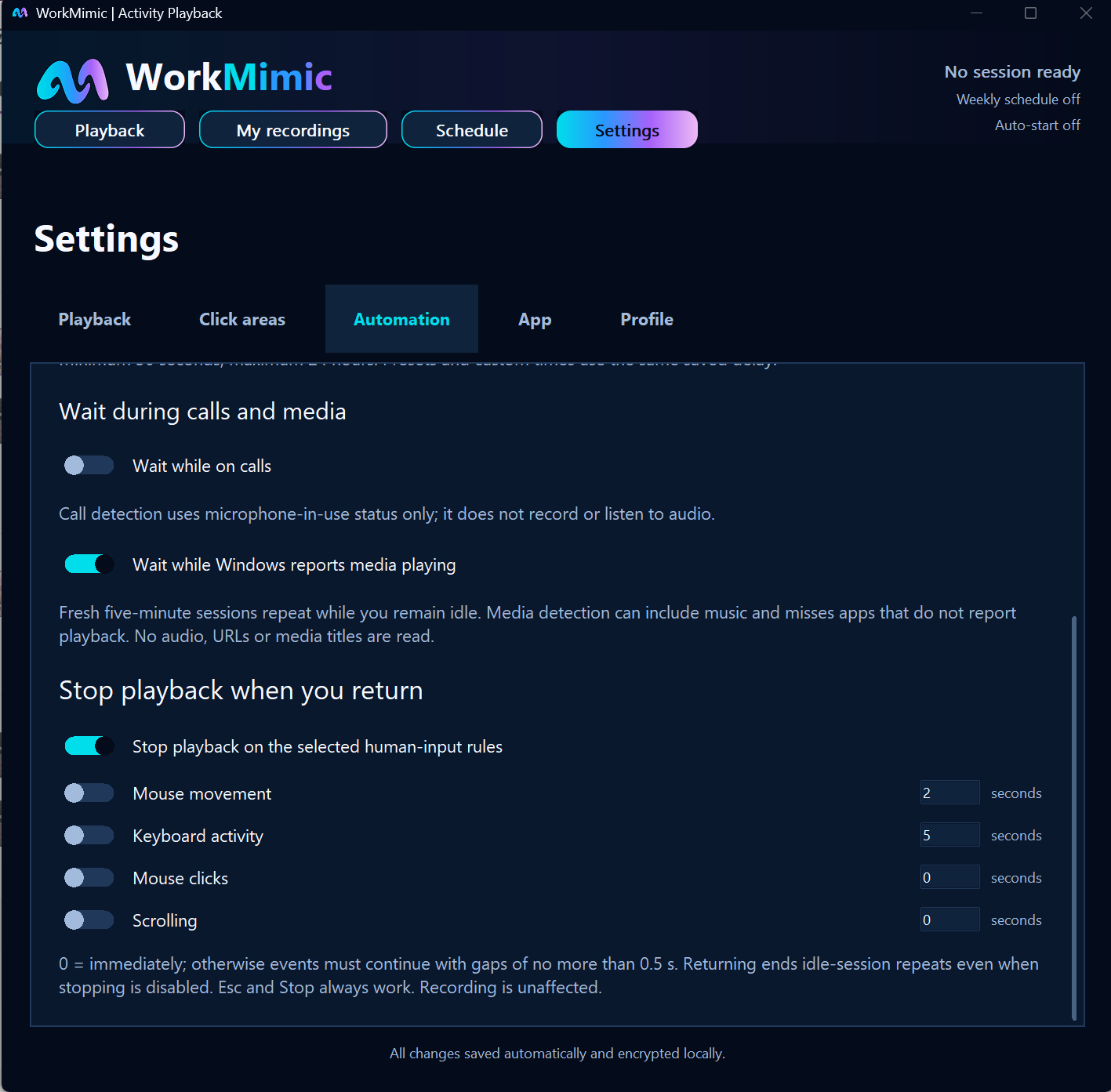
Under Settings → Automation, find Stop playback when you return and enable Stop playback on the selected human-input rules.
WorkMimic allows you to configure several types of interactions that trigger automatic stopping:
- Mouse movement: Stop when you begin moving your mouse.
- Keyboard activity: Stop when you start typing.
- Mouse clicks: Stop when you click the mouse.
- Scrolling: Stop when you use the scroll with your mouse or trackpad.
Each trigger can be enabled or disabled independently, and you can adjust its sensitivity.
Choose how sensitive WorkMimic should be
You may want playback to stop immediately when you start typing, but perhaps not after a tiny accidental mouse movement.
WorkMimic allows you to configure the required duration of real input for each trigger. Setting the threshold to 0 seconds makes the selected interaction an immediate stop trigger.
For longer thresholds, qualifying inputs must continue with gaps no greater than 0.5 seconds.
A typical scenario
- You’re working at your computer.
- You step away for a break.
- WorkMimic automatically starts after the configured inactivity period.
- You come back and begin typing.
- WorkMimic detects your input and automatically stops playback.
There’s no need to open the application or interact with its controls.
The entire start-stop cycle can happen automatically, every time you take a break.
You can still stop WorkMimic manually using the Esc key or the application’s Stop control whenever you need to.
3. Weekly schedules: Automate your entire working week
If you have relatively predictable working hours, WorkMimic offers another convenient option: weekly playback schedules.
Instead of manually starting and stopping playback, you can configure the periods during which WorkMimic should operate.
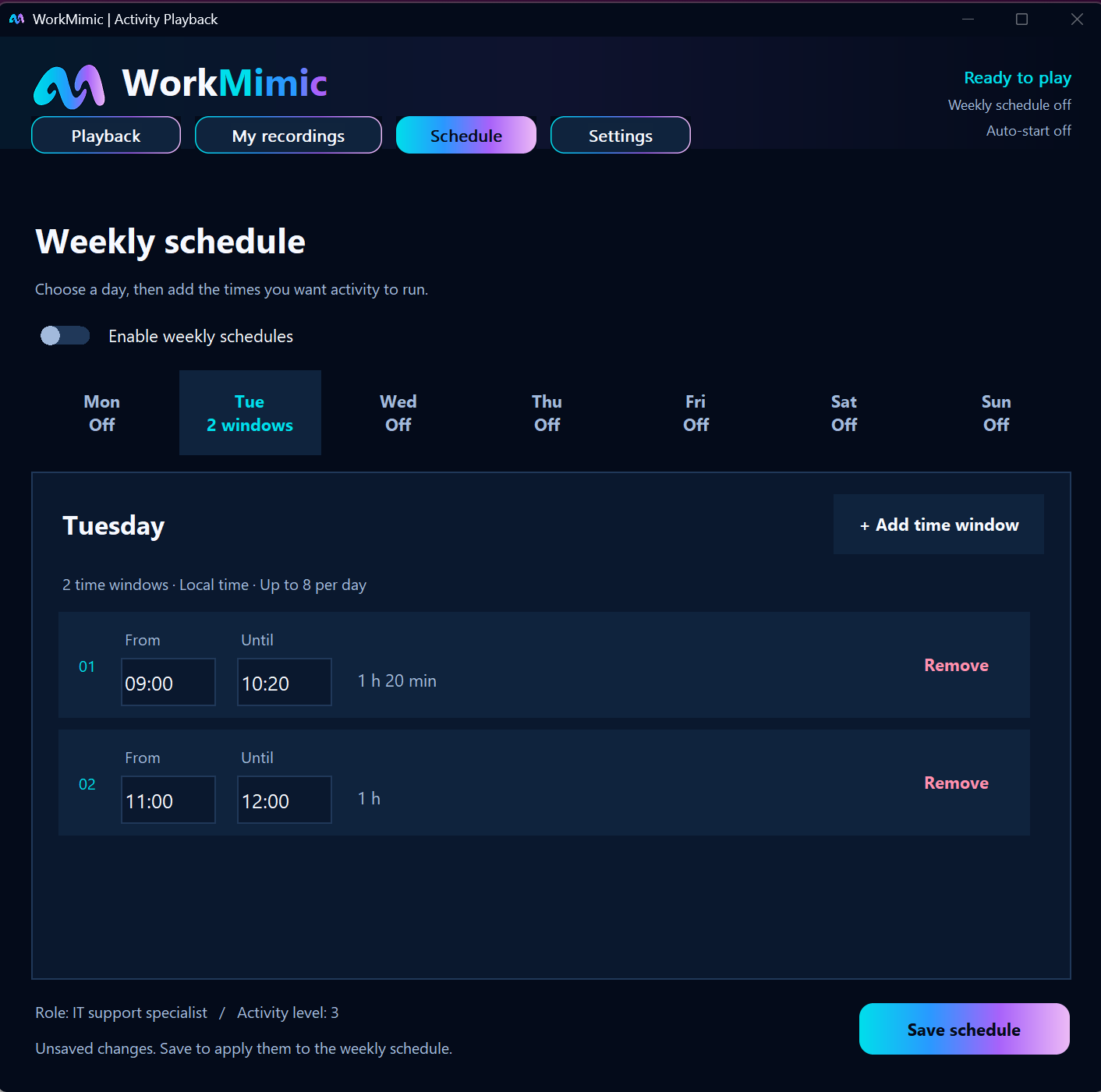
Navigate to the Schedule section and turn on Enable weekly schedules.
You can define different schedules for every day of the week, with up to 8 separate time windows per day.
For example:
| Day | Scheduled playback |
|---|---|
| Monday | 09:00 - 12:00, 13:00 - 17:00 |
| Tuesday | 09:00 - 12:00, 13:00 - 17:00 |
| Wednesday | 10:00 - 14:00 |
| Thursday | 09:00 - 17:00 |
| Friday | 09:00 - 15:00 |
| Saturday & Sunday | Disabled |
These are just examples. You can customize the schedule to match your working hours.
Once you’ve configured your time windows, click Save schedule.
WorkMimic can then automatically start and stop scheduled playback at the designated times.
When are schedules particularly useful?
Weekly schedules are especially convenient if you:
- Work regular hours each day.
- Have recurring periods when you want playback to run.
- Prefer to configure your routine once rather than managing individual sessions.
- Want different automation windows on different weekdays.
Set your weekly schedule once, and WorkMimic will follow it without requiring daily setup.
4. Smart automation during calls and media playback
WorkMimic also includes options to make its automation more aware of what you’re doing.
Under Settings → Automation, find Wait during calls and media.
There are two optional settings.
Wait while on calls
When enabled, WorkMimic uses Windows microphone-in-use status to identify when a call may be taking place and wait during that activity.
It doesn’t record or listen to your conversations.
Wait while media is playing
WorkMimic can also wait when Windows reports that media is playing.
For example, this can be useful when you’re watching a training video or presentation.
Keep in mind that media detection depends on information reported to Windows. It can also detect music playback or miss applications that don’t report their media status.
These settings give you more flexibility in deciding when automated playback should run.
5. Launch automatically with Windows
There is one more thing you can automate: starting WorkMimic itself.
You don’t have to remember to launch the application after every computer restart.
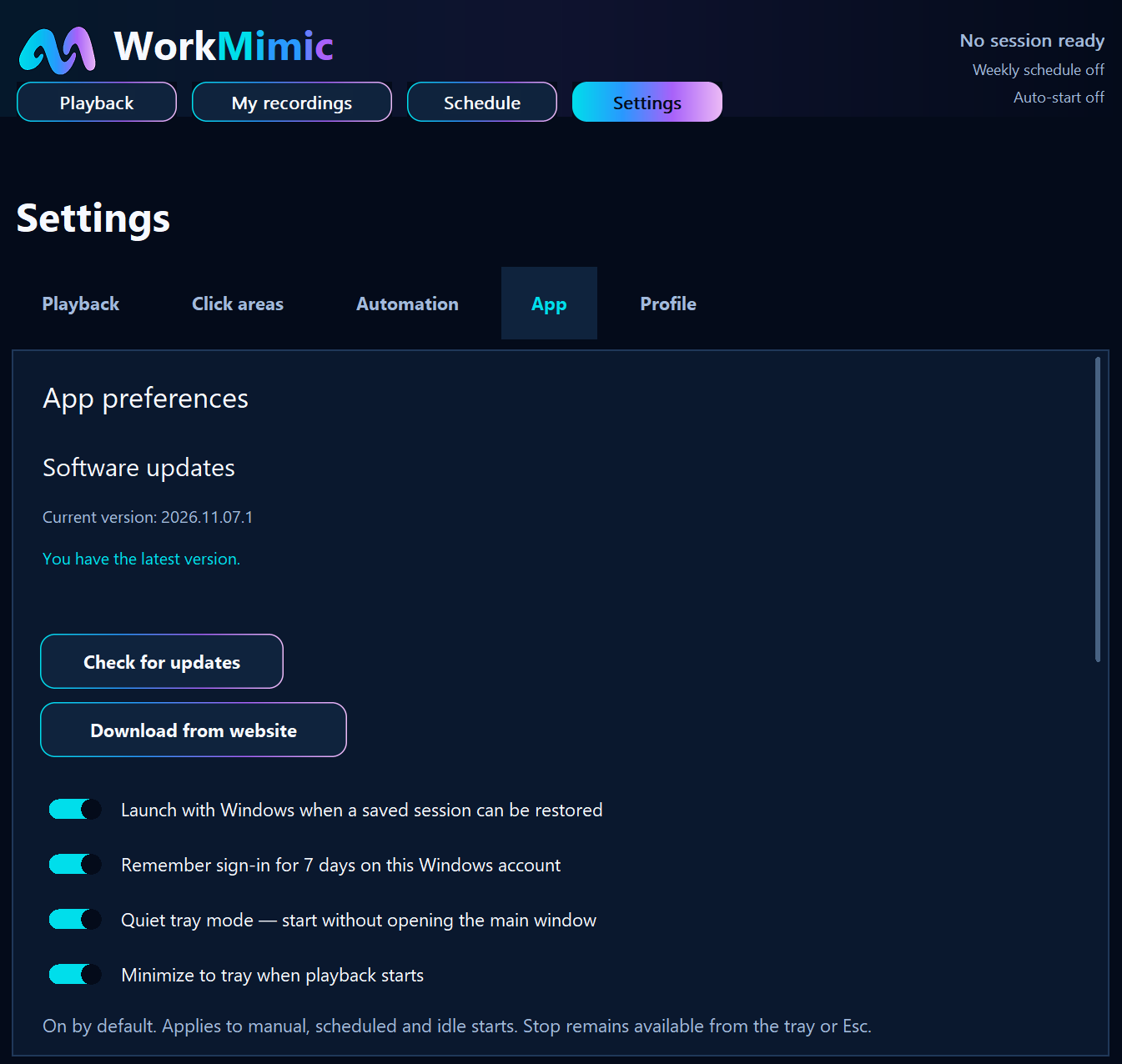
Navigate to Settings → App and enable:
Launch with Windows when a saved session can be restored
This allows WorkMimic to start automatically when you sign in to Windows, provided a saved session can be restored.
You can also enable:
Remember sign-in for 7 days on this Windows account
This allows the application to restore your saved sign-in during the supported period.
For additional convenience, we recommend enabling two other options:
- Quiet tray mode - start without opening the main window: WorkMimic launches in the Windows system tray instead of opening its main interface.
- Minimize to tray when playback starts: WorkMimic automatically minimizes its window when playback begins.
You can always access WorkMimic from the Windows notification area near the clock. Left-click its icon to open the application, or right-click to access playback controls, recording, settings, and Exit.
6. Check your automation status at a glance
After configuring the automation options, you can see their status directly on the main Playback screen.
The upper-right corner displays indicators showing whether a playback session is ready, whether your weekly schedule is active, and whether automatic starting is enabled.
This makes it easy to check your configuration without navigating through several settings pages.

Which automation option should you choose?
You don’t have to use every feature. WorkMimic gives you the flexibility to build a setup that matches your routine.
| Your preference | Recommended feature |
|---|---|
| I take unpredictable breaks throughout the day | Automatic start after inactivity |
| I want playback to stop when I resume working | Automatic stopping on human input |
| I work regular hours | Weekly schedules |
| I want playback to wait during calls or videos | Call and media awareness |
| I don't want to launch WorkMimic every time I reload my computer | Launch with Windows |
| I prefer the app to operate without opening its window | Quiet Tray Mode |
For the most hands-free experience, we recommend combining automatic start after inactivity, automatic stop on real user input, and Launch with Windows.
If you have fixed working hours, weekly schedules can provide another useful layer of automation.
The bottom line: Less managing, more freedom
WorkMimic isn’t just about replaying recorded human activity. It’s also about making the experience as convenient as possible.
You shouldn’t have to think about an application every time you stop typing, step away from your desk, or return to work.
With automatic starting, stopping, scheduled playback, and Windows startup integration, WorkMimic can handle these routine operations for you.
Configure it once. Take your breaks whenever you need them. Let WorkMimic take care of the rest.
Learn more at workmimic.app.
KEEP THE IDEAS GOING
A good next read
How to Configure WorkMimic for Invisible Background Operation
A step-by-step guide to Windows startup, quiet tray mode, automatic playback and weekly schedules, without keeping the main window open.
Read article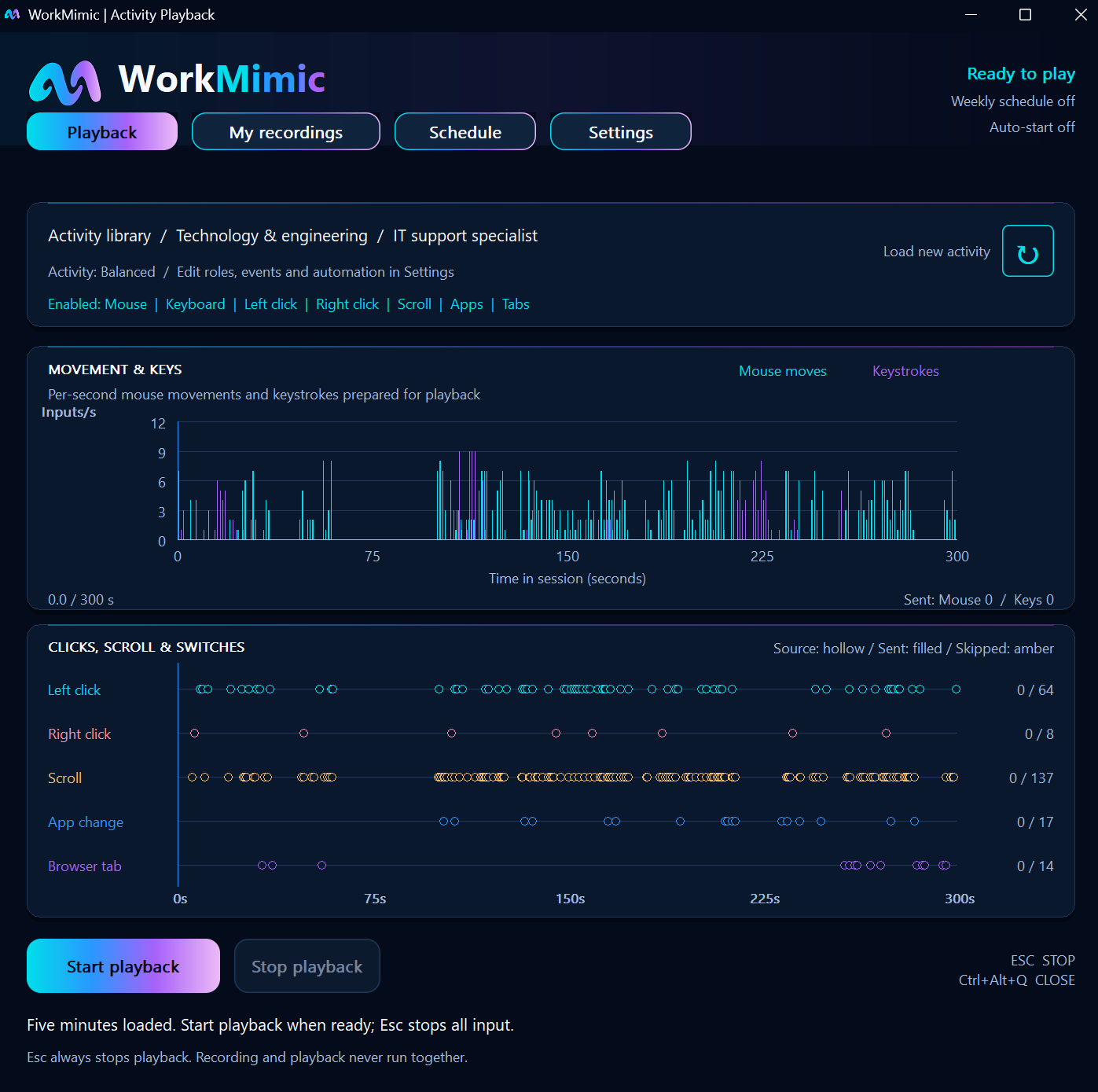
How to Customize WorkMimic Playback: Profiles, Intensity, and Input Settings
Choose a professional work profile, adjust activity intensity, select keyboard and mouse inputs, and configure click areas across your displays.
Read articleWhy WorkMimic Is Designed to Stay Invisible to Time-Tracking Tools
Understand background operation, recorded human activity, and how WorkMimic interacts with active-window tracking, activity metrics and screen captures.
Read article